Request a Demo
  • Platform
    • Donations
    • Campaigns
    • Events
    • eCards
    • CRM
  • Features
  • Integrations
  • Support
  • Company
  • Platform
    • Donations
    • Campaigns
    • Events
    • eCards
    • CRM
  • Features
  • Integrations
  • Support
  • Company
Request a Demo

Donations

  • Creating On-Page Donation Forms
  • How to configure a sponsorship opportunity donation form
  • How to setup a variations donation form
  • Overview of Donation Forms on LevCharity

Crowdfunding Campaigns

  • Creating a Crowdfunding Campaign at LevCharity
  • Setting Up Crowdfunding Campaigns
  • Crowdfunding Sign-Up Procedure
  • Creating Crowdfunding Emails on LevCharity Platform
  • Exporting Data for Team Campaigns

Integrations & Settings

  • Setting Up Donation Forms in Plugin
  • Crowdfunding Account Sign-Up Settings

Events

  • Creating Events Using the Events Module
  • Creating and Managing Events in the Back-End System
  • Creating an Event Using the OLD Template in Fundraise
  • Creating and Managing Events Using Single and Multiple Templates
  • Setting Up Emails for Events
  • Exporting Event Data from LevCharity Platform
  • Creating Event Digital Ads

E-Cards

  • Creating E-Cards
  • Managing E-Cards
  • Setting Up E-Card Email Notifications

Fundraising Campaigns

  • Creating a Fundraising Campaign on LevCharity Platform
  • Standard Operating Procedure for Managing Fundraising Campaigns

Configure

  • Setting Up Donation Receipts
  • Adding Sponsorship Equipment Pieces to Your Site

Transactions

  • Managing Transactions in the Admin Back-End
View Categories

Crowdfunding Sign-Up Procedure

2 min read

Objective #

This SOP outlines the steps for signing up for a crowdfunding campaign, including creating or joining a team, and setting up personal campaigns.

Key Steps #

1. Access the Sign-Up Page 0:13

  • Navigate to the crowdfunding sign-up page via the landing page or the provided URL.

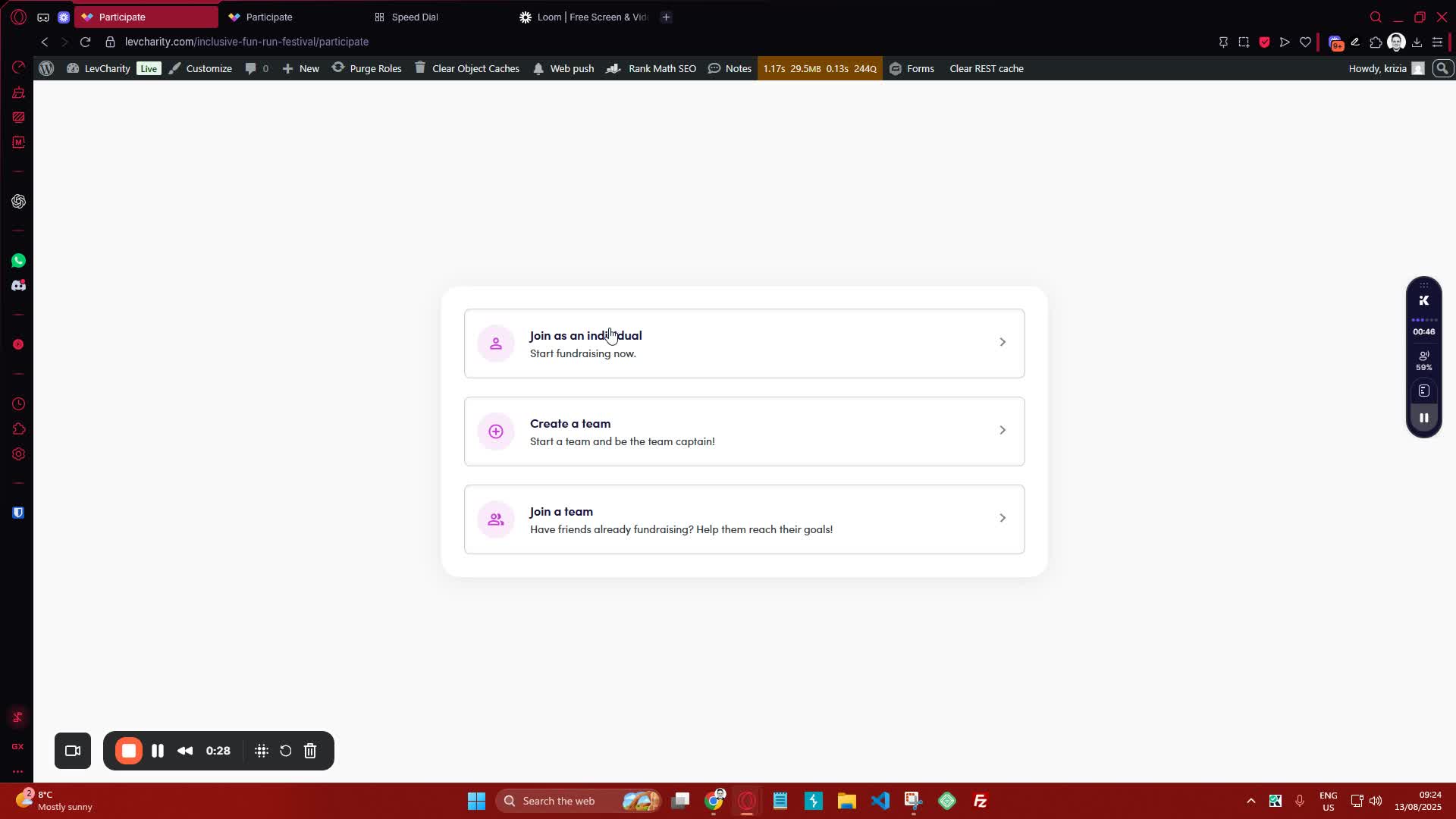
2. Choose Sign-Up Type 0:29
generated-image-at-00:00:29
  • Select one of the following options:
    • Join as an individual
    • Create a team
    • Join an existing team
  • For this procedure, we will focus on creating a team.

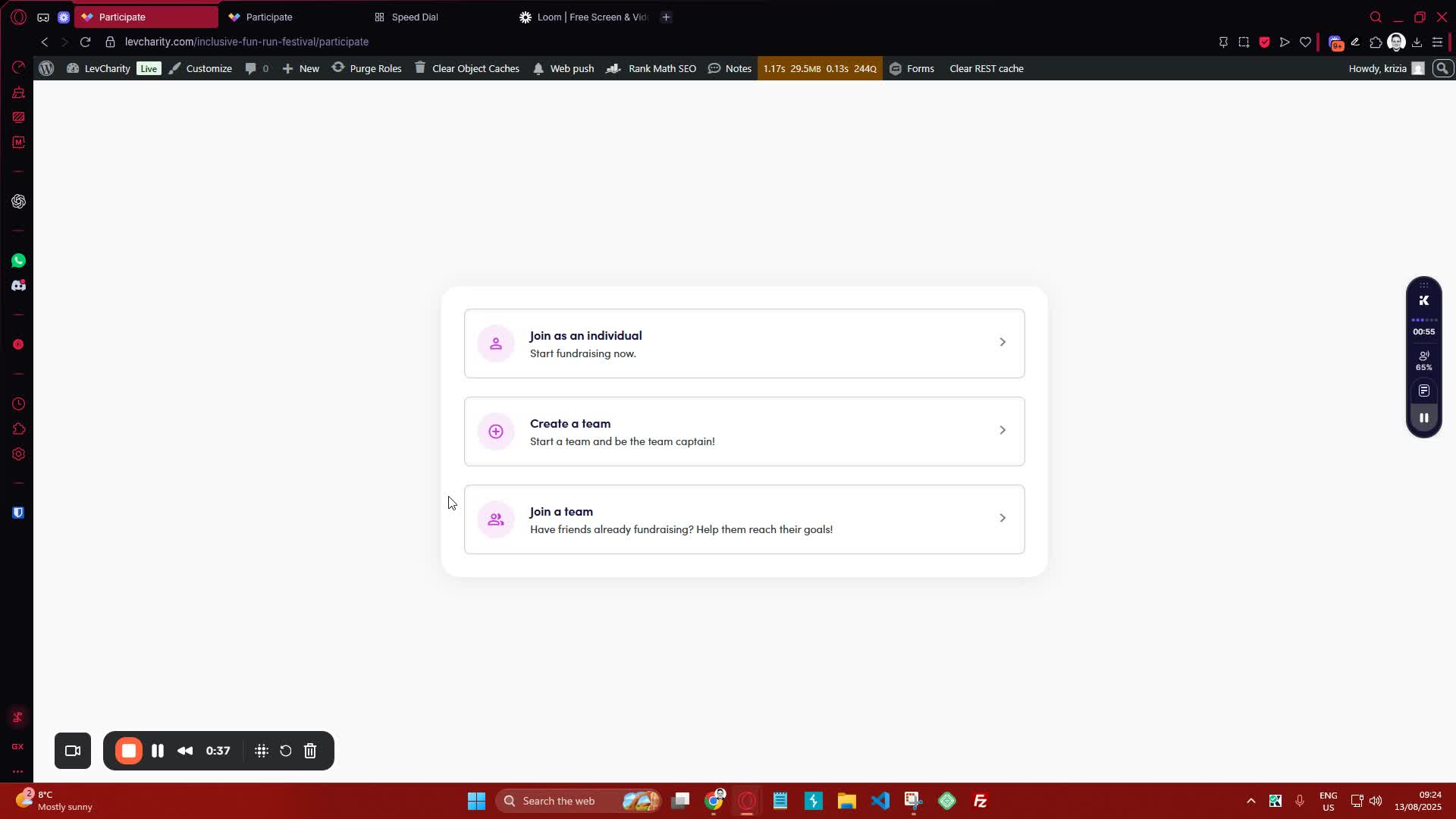
3. Create a Team 0:38
generated-image-at-00:00:38
  • Click on ‘Create a Team’.
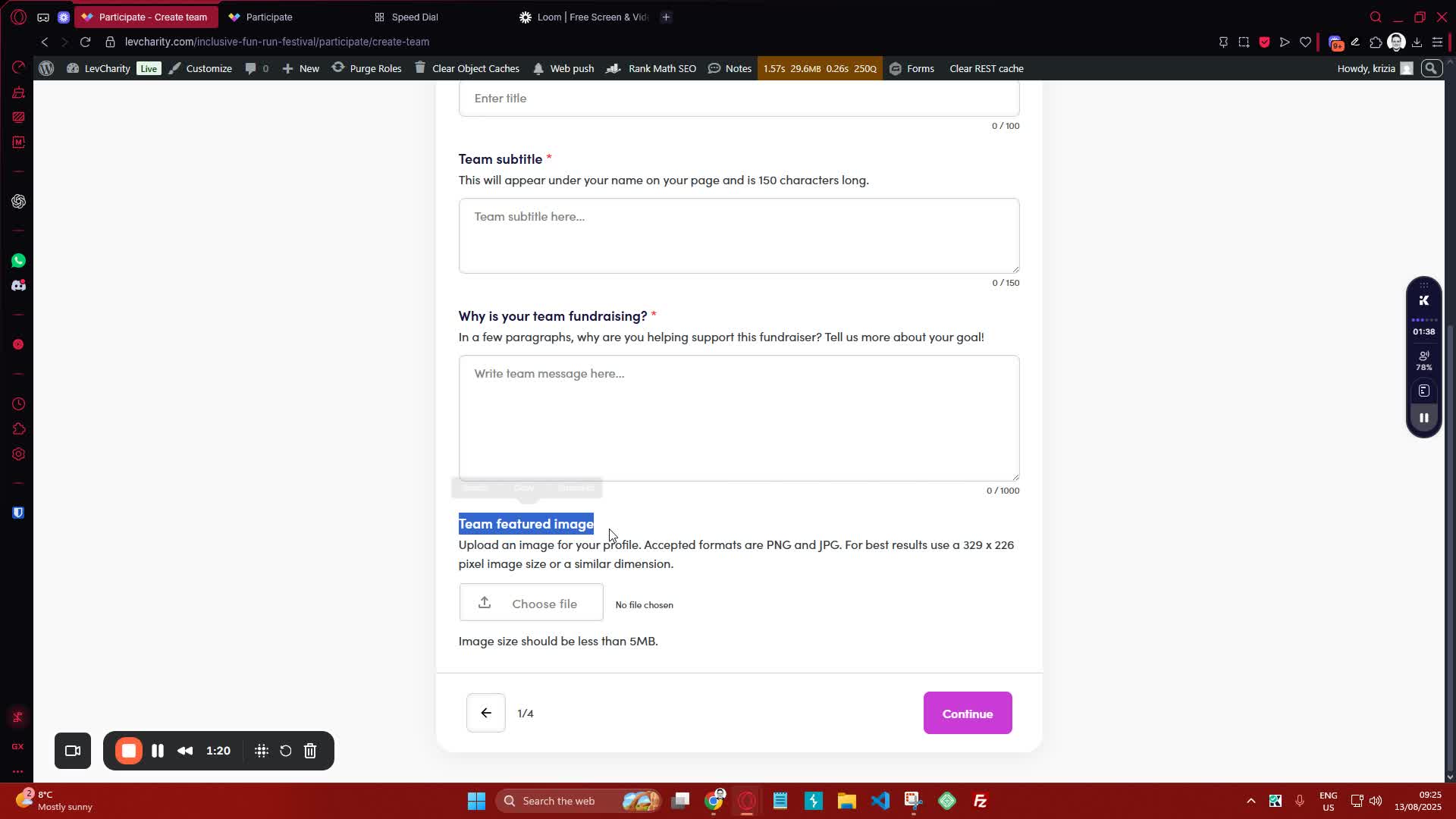
  • Fill in the required fields:
    • Team fundraising goal
    • Team name
    • Campaign title
    • Team subtitle
    • Reason for fundraising
  • Optionally, upload a team featured image.

4. Autofill Options 1:21
generated-image-at-00:01:21
  • You can utilize autofill options for:
    • Team name
    • Campaign title
  • Set these options in the settings under the Teams tab.

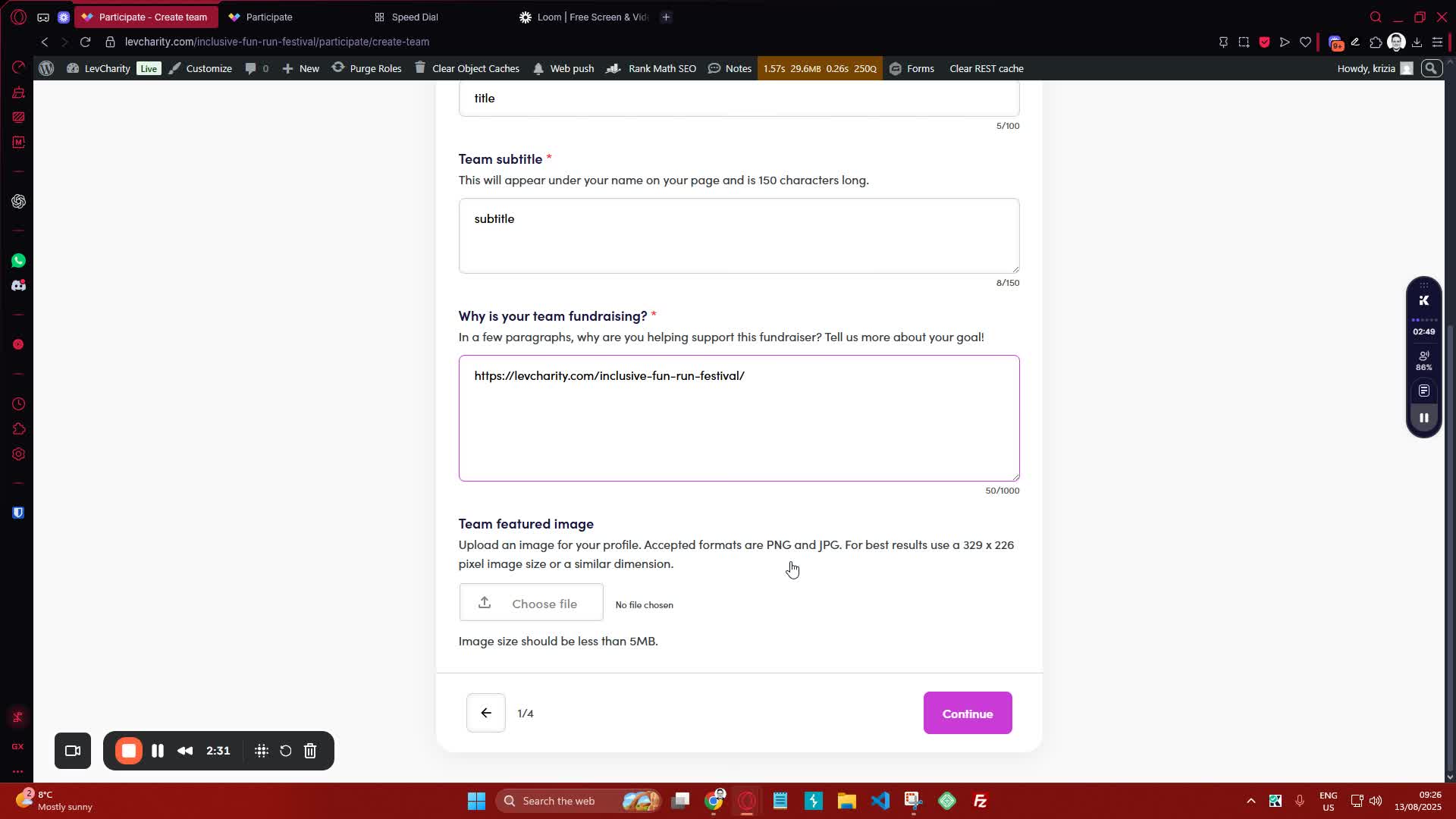
5. Review Information 2:32
generated-image-at-00:02:32
  • After entering the information, review it on the confirmation page.

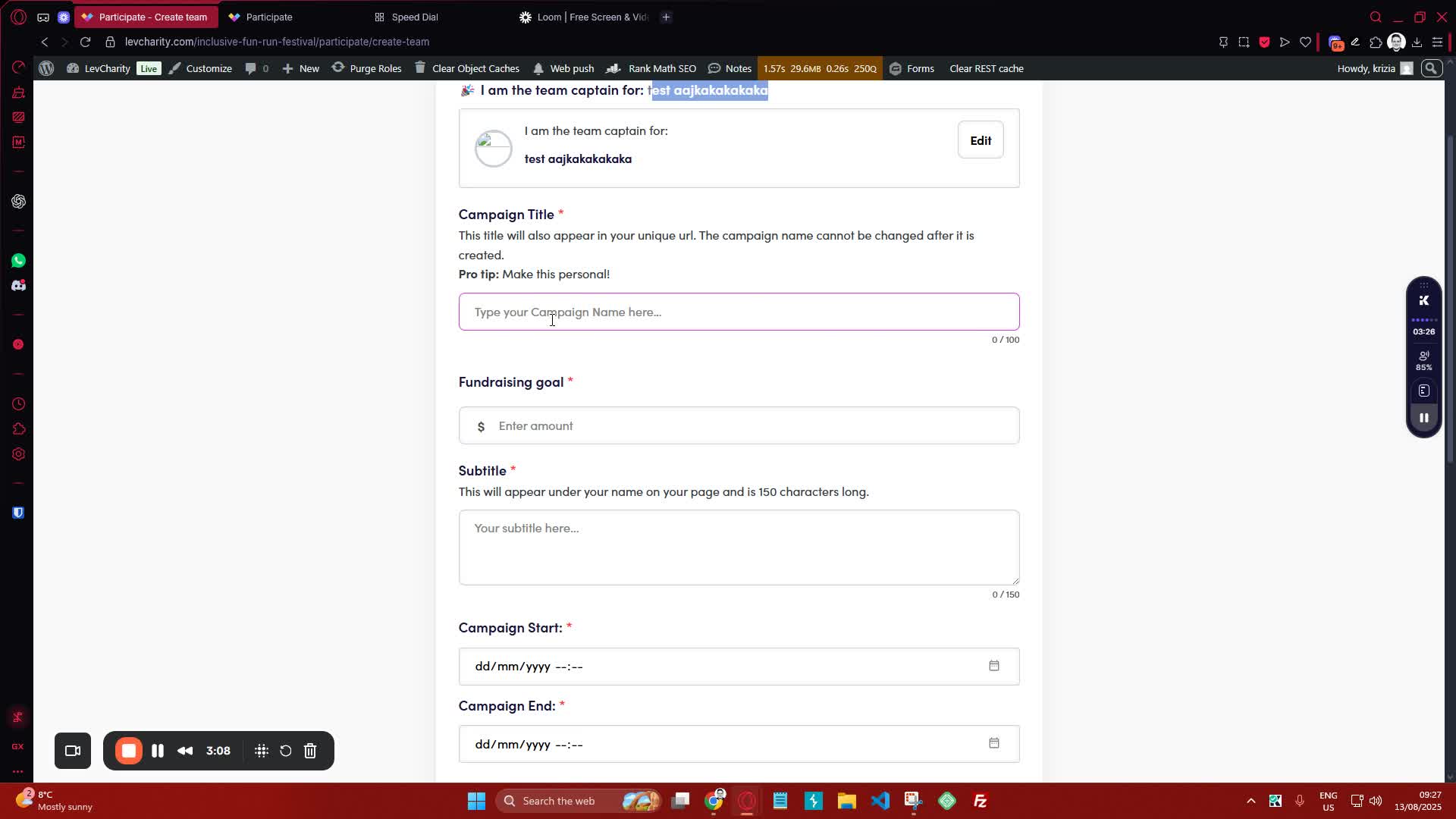
6. Set Up Personal Campaign 3:09
generated-image-at-00:03:09
  • After confirming, set up your personal campaign by entering:
    • Campaign title
    • Fundraising goal
    • Subtitle
    • Start and end dates (optional)
    • Reason for fundraising
    • Featured image, additional photos, and video URL (optional).

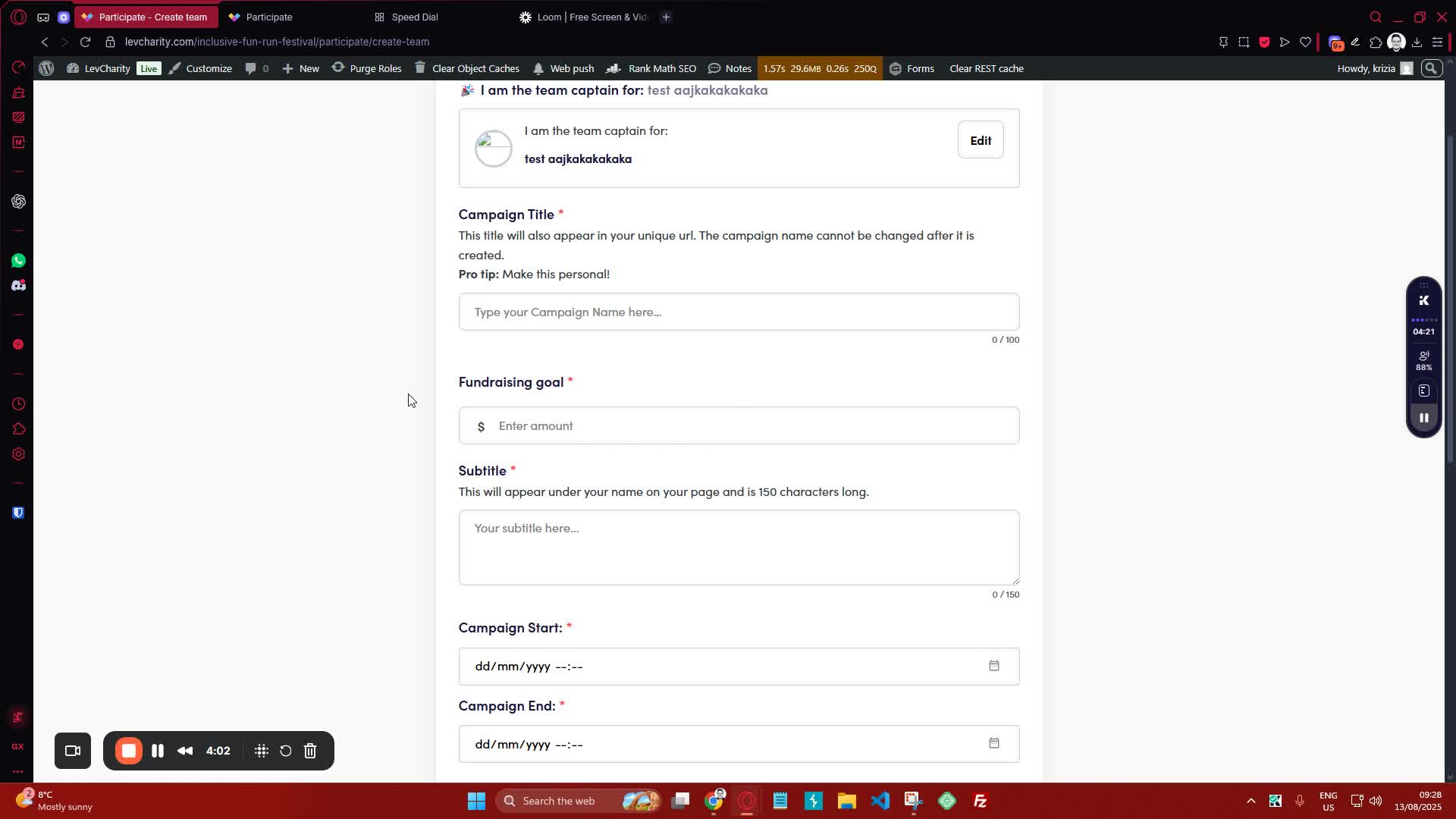
7. Adjust Settings 4:03
generated-image-at-00:04:03
  • If necessary, toggle settings to hide fields such as:
    • Subtitle
    • Campaign start and end dates
    • Reason for fundraising.

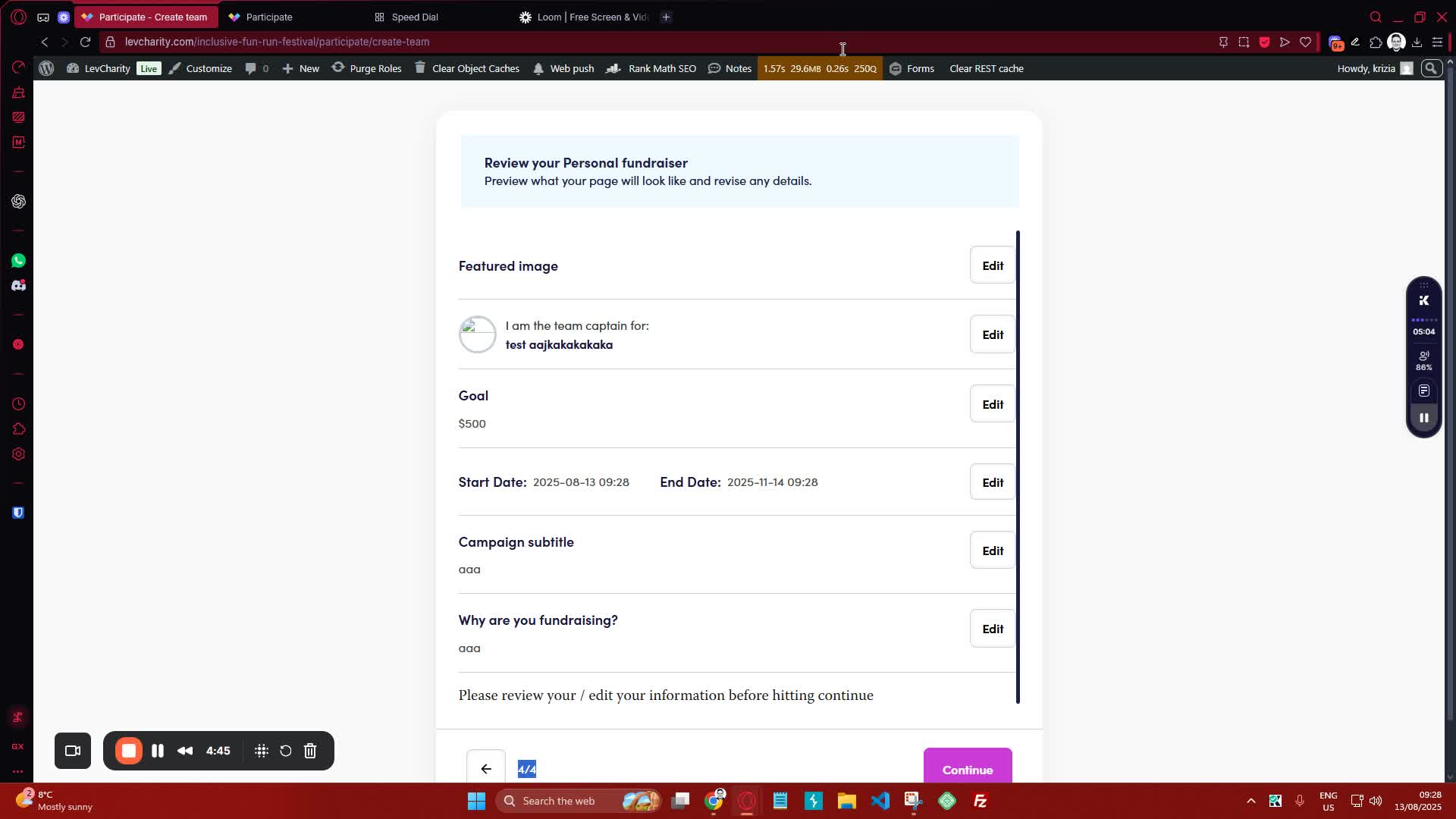
8. Finalize and Submit 4:46
generated-image-at-00:04:46
  • Click ‘Continue’ to finalize your submission.

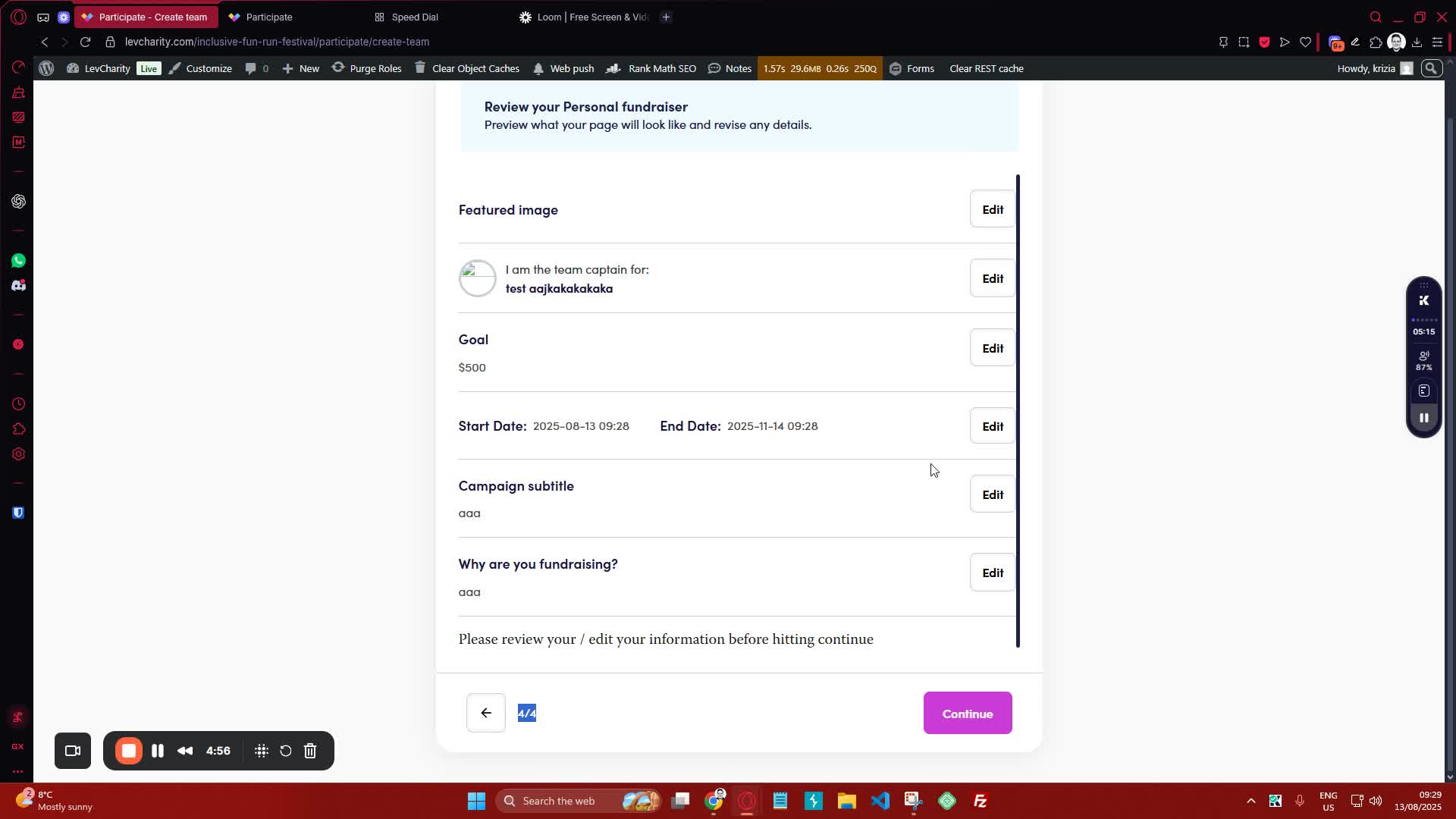
9. Confirmation Email 4:57
generated-image-at-00:04:57
  • A thank you message will be displayed.
  • An email will be sent to confirm your sign-up.
  • If auto-approval is off, a request email will be sent, which may take 24-48 hours for approval.

10. Joining a Team 5:45
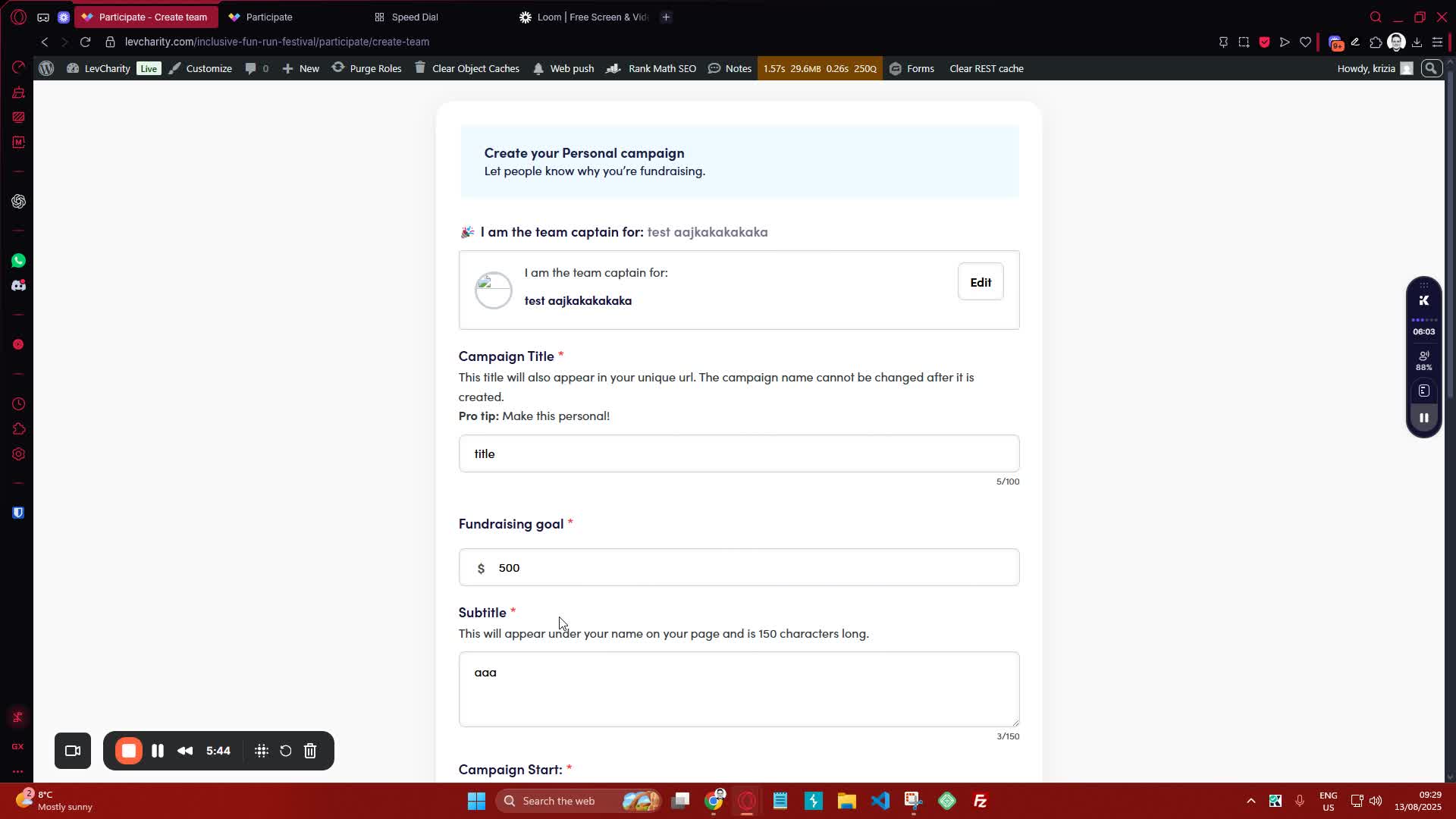
generated-image-at-00:05:45
  • To join a team, search for the team name on the sign-up page.
  • Click on the team and continue to fill in the necessary fields.

11. Peer-to-Peer Sign-Up Option 6:57
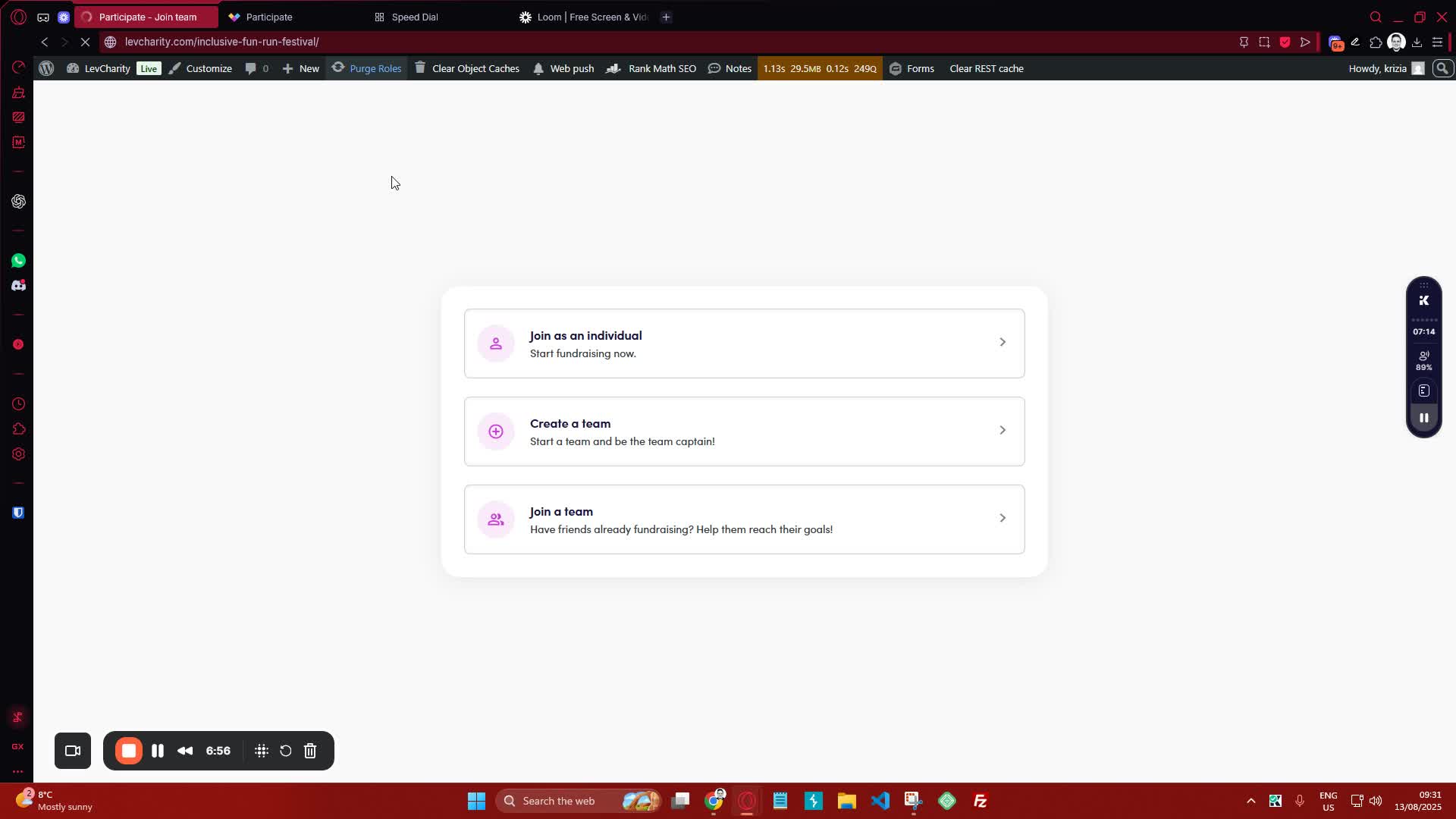
generated-image-at-00:06:57
  • If applicable, use the peer-to-peer sign-up option to bypass team selection and go directly to the sign-up page.

Cautionary Notes #

  • Ensure all required fields are filled out accurately to avoid delays in approval.
  • Double-check the team name and fundraising goal to ensure they align with campaign objectives.

Tips for Efficiency #

  • Use autofill options to save time when entering repetitive information.
  • Review all information before submission to minimize the need for corrections later.

Link to Loom #

Was this article helpful?
Still not sure? How can we help?

How can we help?

Updated on October 29, 2025
Setting Up Crowdfunding CampaignsCreating Crowdfunding Emails on LevCharity Platform
Table of Contents
  • Objective
  • Key Steps
  • Cautionary Notes
  • Tips for Efficiency
  • Link to Loom
Join our newsletter

Add your email to stay up to date on features and new releases:

[sibwp_form id=1]
  • Docs
  • Changelog
  • Privacy Policy
  • Terms of Service
  • Cookies Settings
  • Docs
  • Changelog
  • Privacy Policy
  • Terms of Service
  • Cookies Settings