Request a Demo
  • Platform
    • Donations
    • Campaigns
    • Events
    • eCards
    • CRM
  • Features
  • Integrations
  • Support
  • Company
  • Platform
    • Donations
    • Campaigns
    • Events
    • eCards
    • CRM
  • Features
  • Integrations
  • Support
  • Company
Request a Demo

Donations

  • Creating On-Page Donation Forms
  • How to configure a sponsorship opportunity donation form
  • How to setup a variations donation form
  • Overview of Donation Forms on LevCharity

Crowdfunding Campaigns

  • Creating a Crowdfunding Campaign at LevCharity
  • Setting Up Crowdfunding Campaigns
  • Crowdfunding Sign-Up Procedure
  • Creating Crowdfunding Emails on LevCharity Platform
  • Exporting Data for Team Campaigns

Integrations & Settings

  • Setting Up Donation Forms in Plugin
  • Crowdfunding Account Sign-Up Settings

Events

  • Creating Events Using the Events Module
  • Creating and Managing Events in the Back-End System
  • Creating an Event Using the OLD Template in Fundraise
  • Creating and Managing Events Using Single and Multiple Templates
  • Setting Up Emails for Events
  • Exporting Event Data from LevCharity Platform
  • Creating Event Digital Ads

E-Cards

  • Creating E-Cards
  • Managing E-Cards
  • Setting Up E-Card Email Notifications

Fundraising Campaigns

  • Creating a Fundraising Campaign on LevCharity Platform
  • Standard Operating Procedure for Managing Fundraising Campaigns

Configure

  • Setting Up Donation Receipts
  • Adding Sponsorship Equipment Pieces to Your Site

Transactions

  • Managing Transactions in the Admin Back-End
View Categories

Creating On-Page Donation Forms

2 min read

Objective #

To outline the steps to create and configure on-page donation forms in the LevCharity backend system.

Key Steps #

Accessing Donation Forms 0:25

  • Navigate to LevCharity.
  • Click on Fundraise.
  • Select Donation Forms from the Fundraise tab.

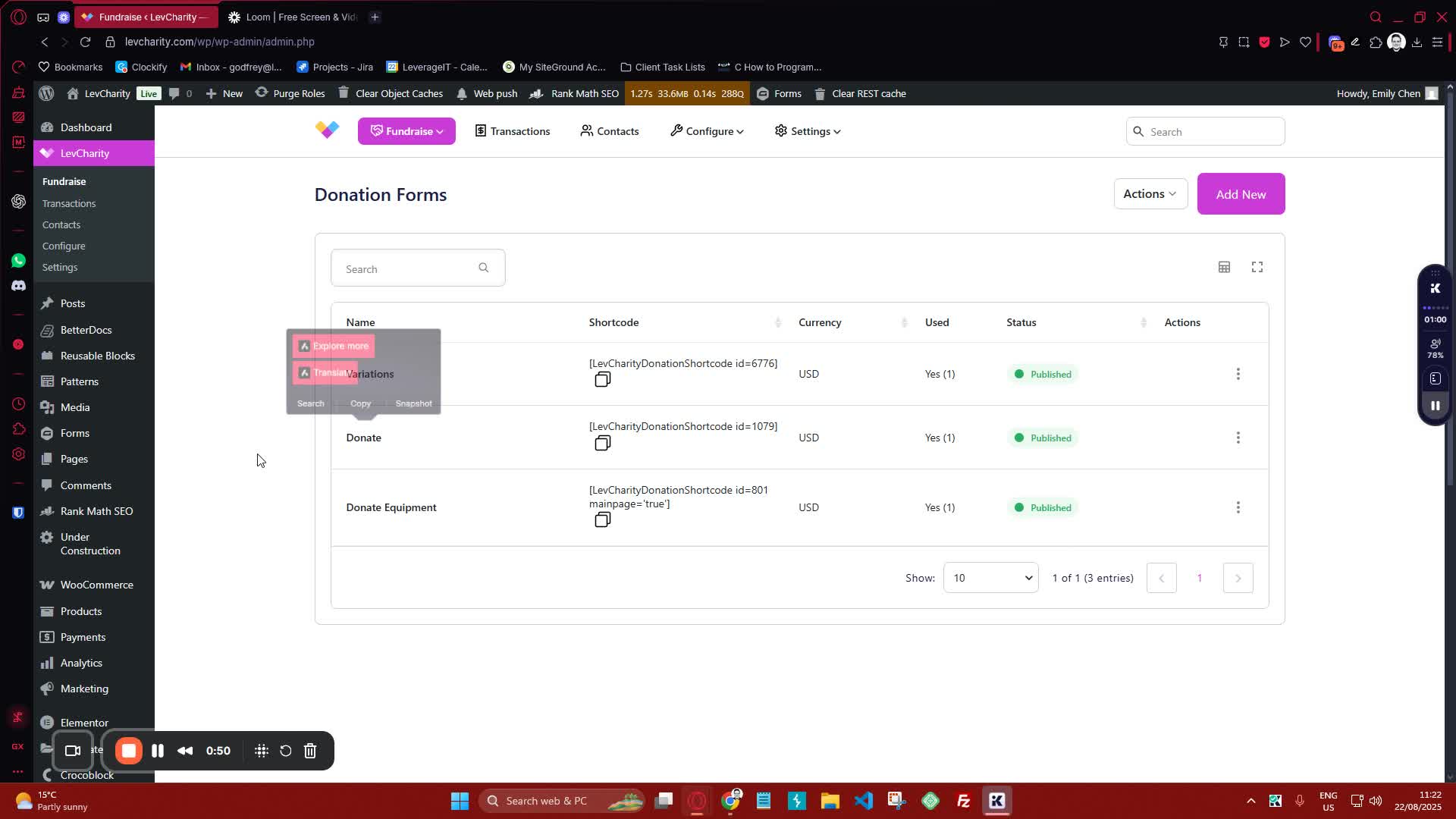
Adding a New Donation Form 0:51
generated-image-at-00:00:51
  • Click on Add New to create a new donation form.

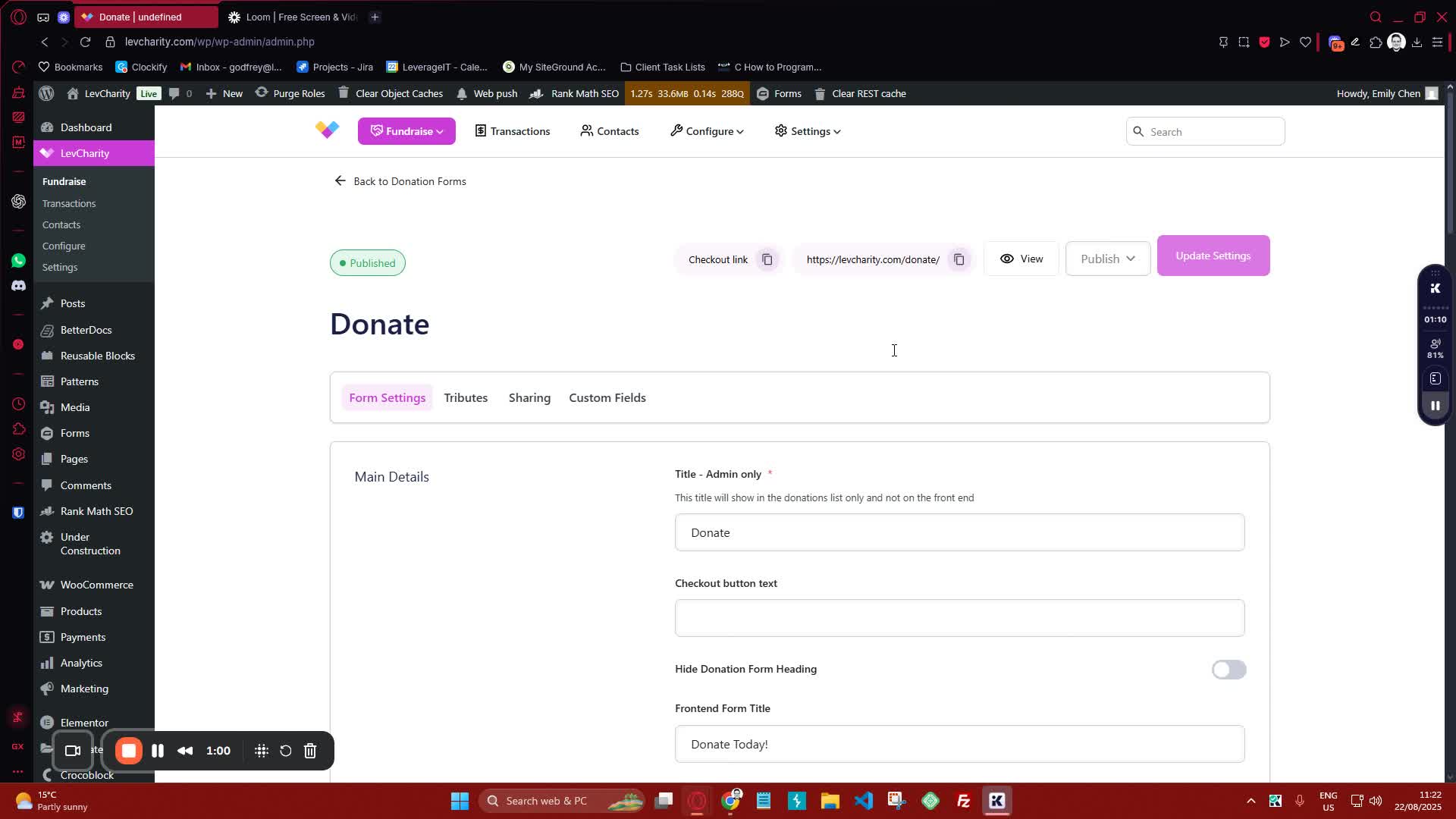
Configuring Form Settings 1:01
generated-image-at-00:01:01
  • Fill out the following details:
    • Admin Title: Name your form (e.g., ‘Donate’).
    • Checkout Button Text: Customize the text on the checkout button (e.g., ‘Donate Now’).
    • Front End Form Title: Add a title for the form or choose to hide it.
    • Front End Form Subtitle: Add a subtitle if needed.

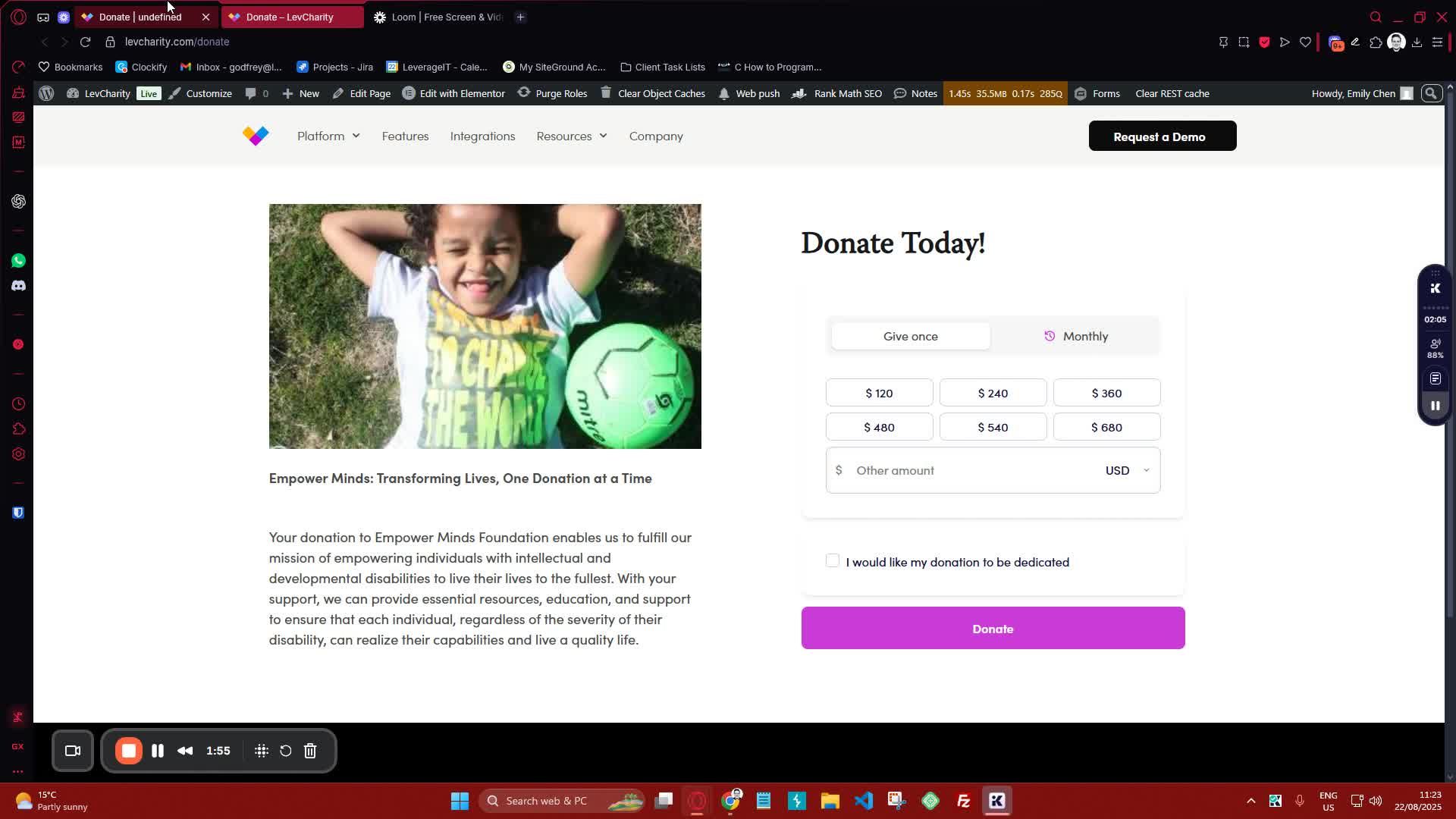
Currency Settings 1:56
generated-image-at-00:01:56
  • To hide the currency switcher, toggle the option to display a single currency (default is USD).

Setting Donation Amounts 2:37

  • Define predefined amounts for donations.
  • Optionally, enable custom predefined amounts for this specific form.

Minimum and Maximum Donations 3:29
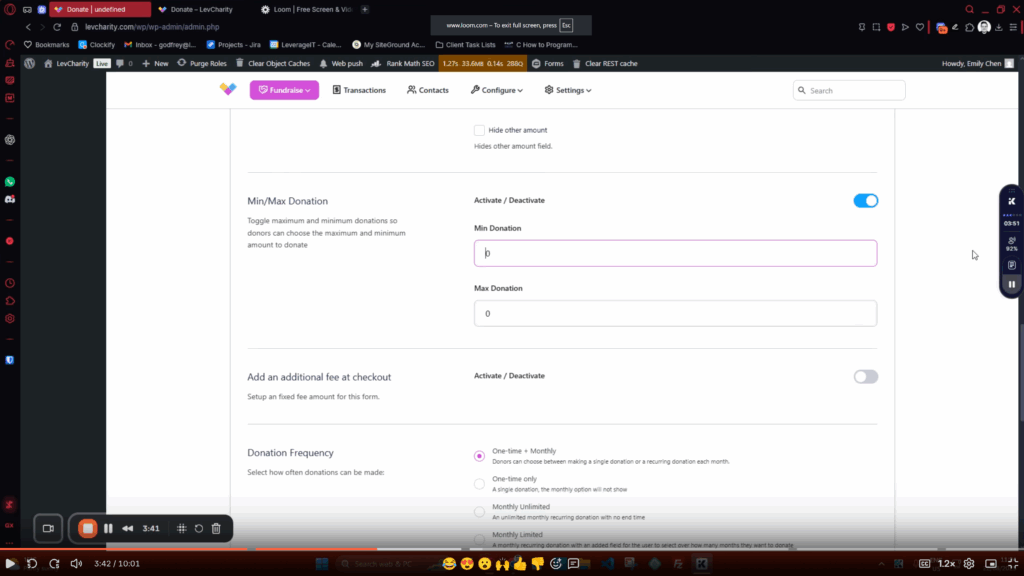
  • Activate the min/max donation feature if you want to restrict donation amounts.
  • Set the minimum and maximum values.

Adding Additional Fees 4:07
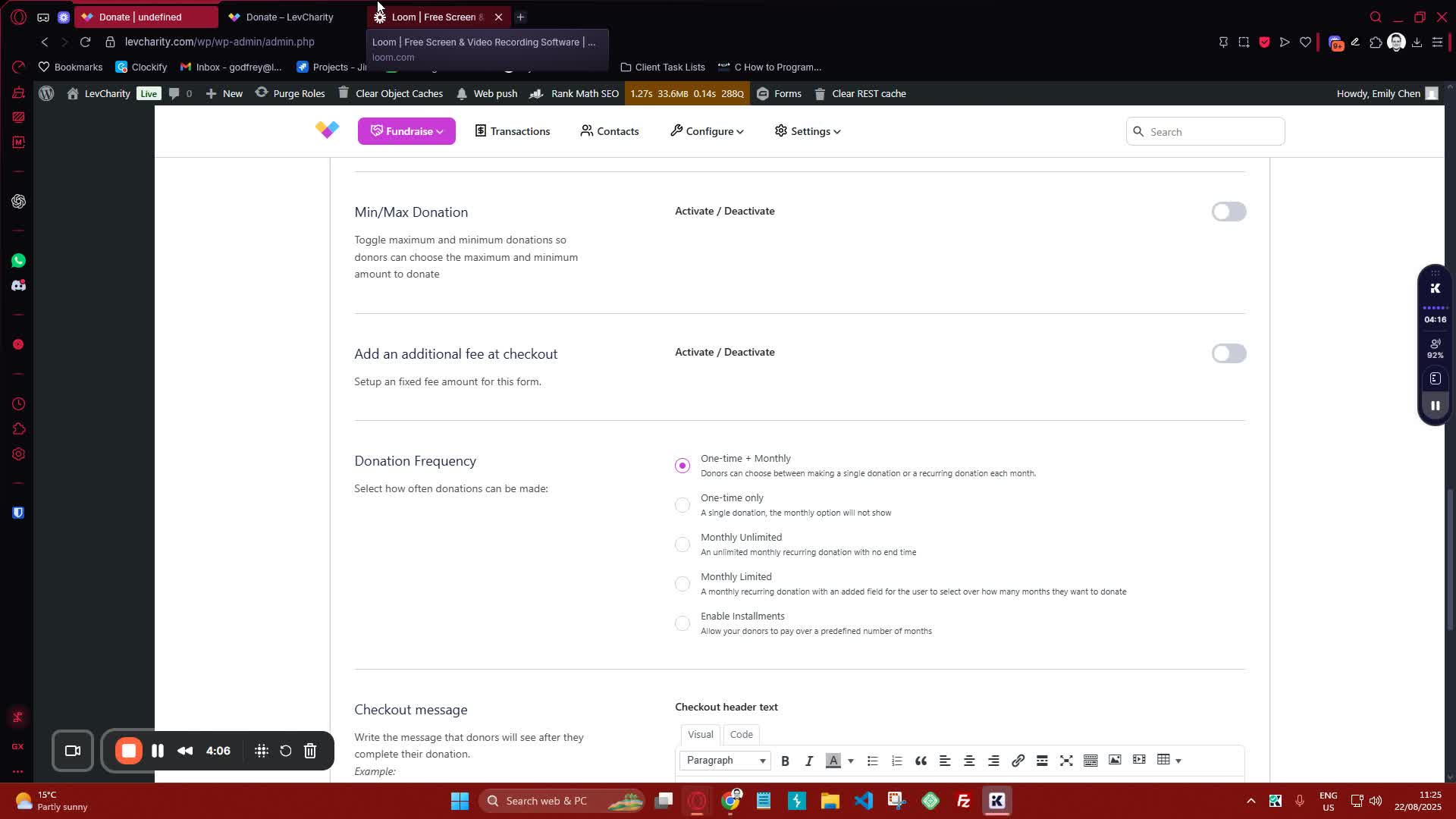
generated-image-at-00:04:07
  • If applicable, add a processing fee:
    • Choose between a fixed or percentage-based fee.
    • Name the fee (e.g., ‘Processing Fee’).

Donation Frequency Options 4:40
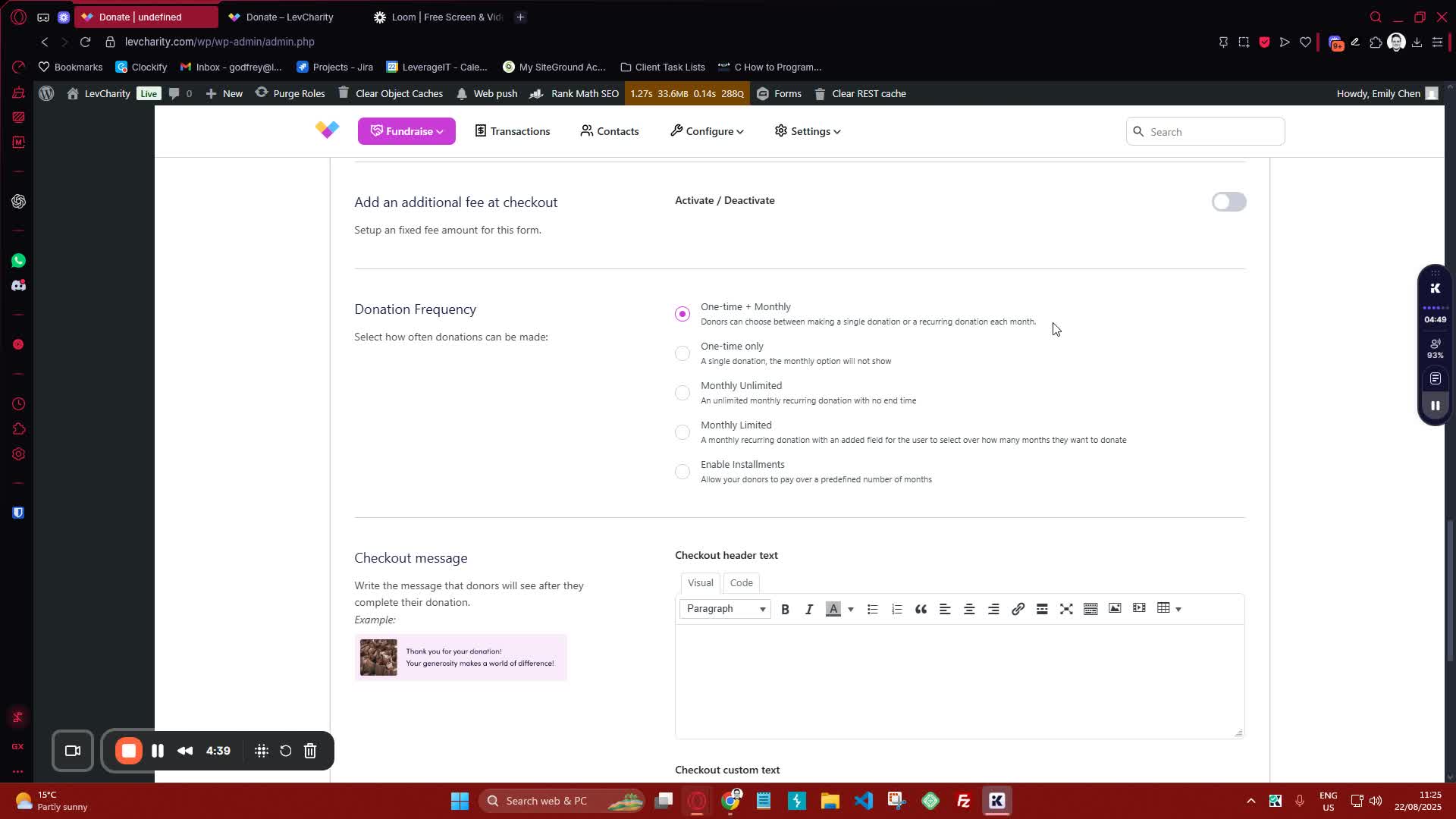
generated-image-at-00:04:40
  • Choose the donation frequency:
    • One Time Monthly: Default setting.
    • One Time Only: Monthly option will not be available.
    • Monthly Unlimited: Subscription continues until canceled.
    • Monthly Limited: Set a limit on the number of months.
    • Installments: Allow donors to pay in installments.

Checkout Message Customization 6:31
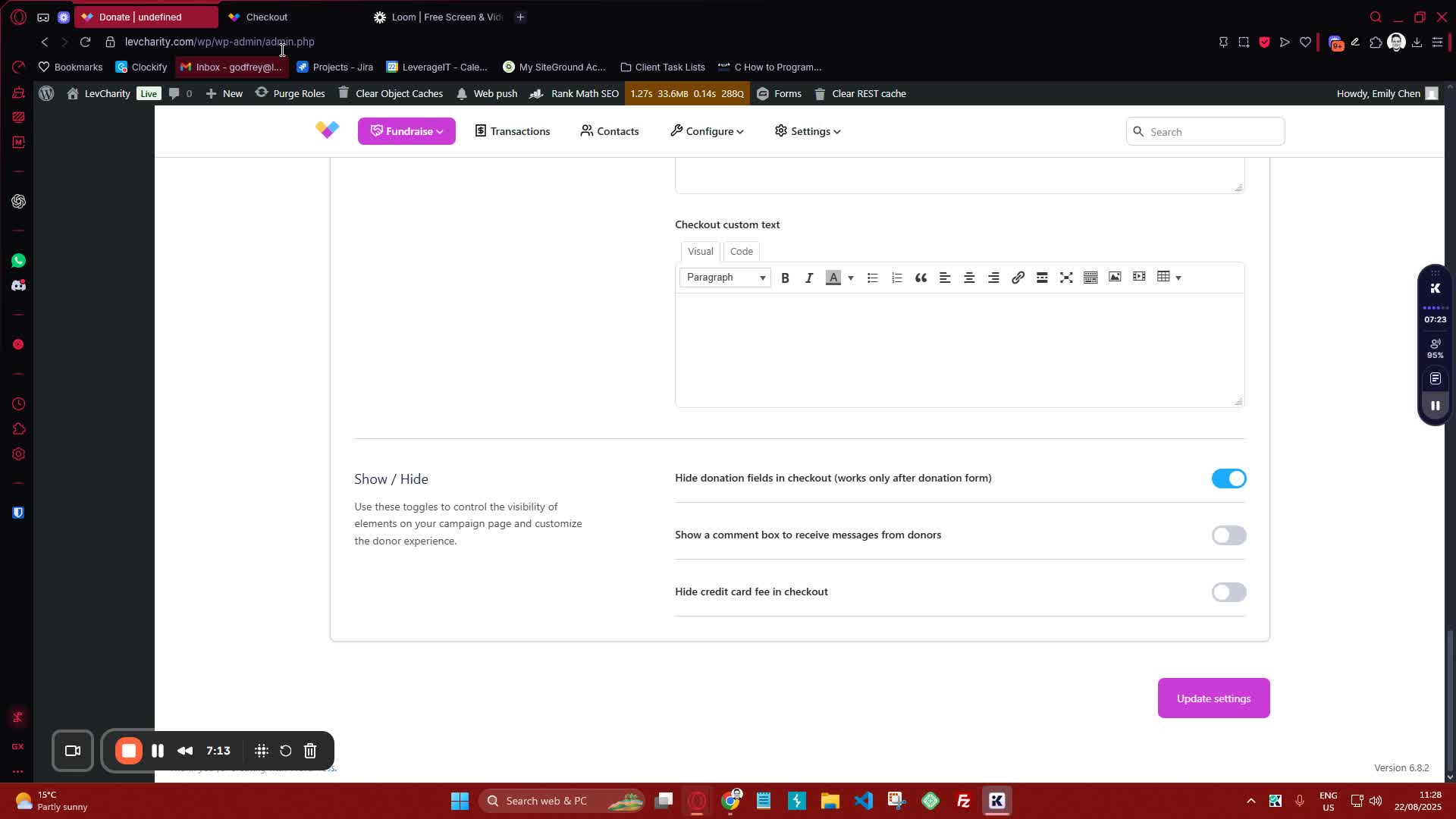
generated-image-at-00:07:14
  • Customize the header and custom text that appears at checkout.

Checkout Field Options 7:14

generated-image-at-00:07:14
  • Decide whether to hide donation fields at checkout.
  • Enable a comment box for additional donor messages.

Tribute Options 7:56
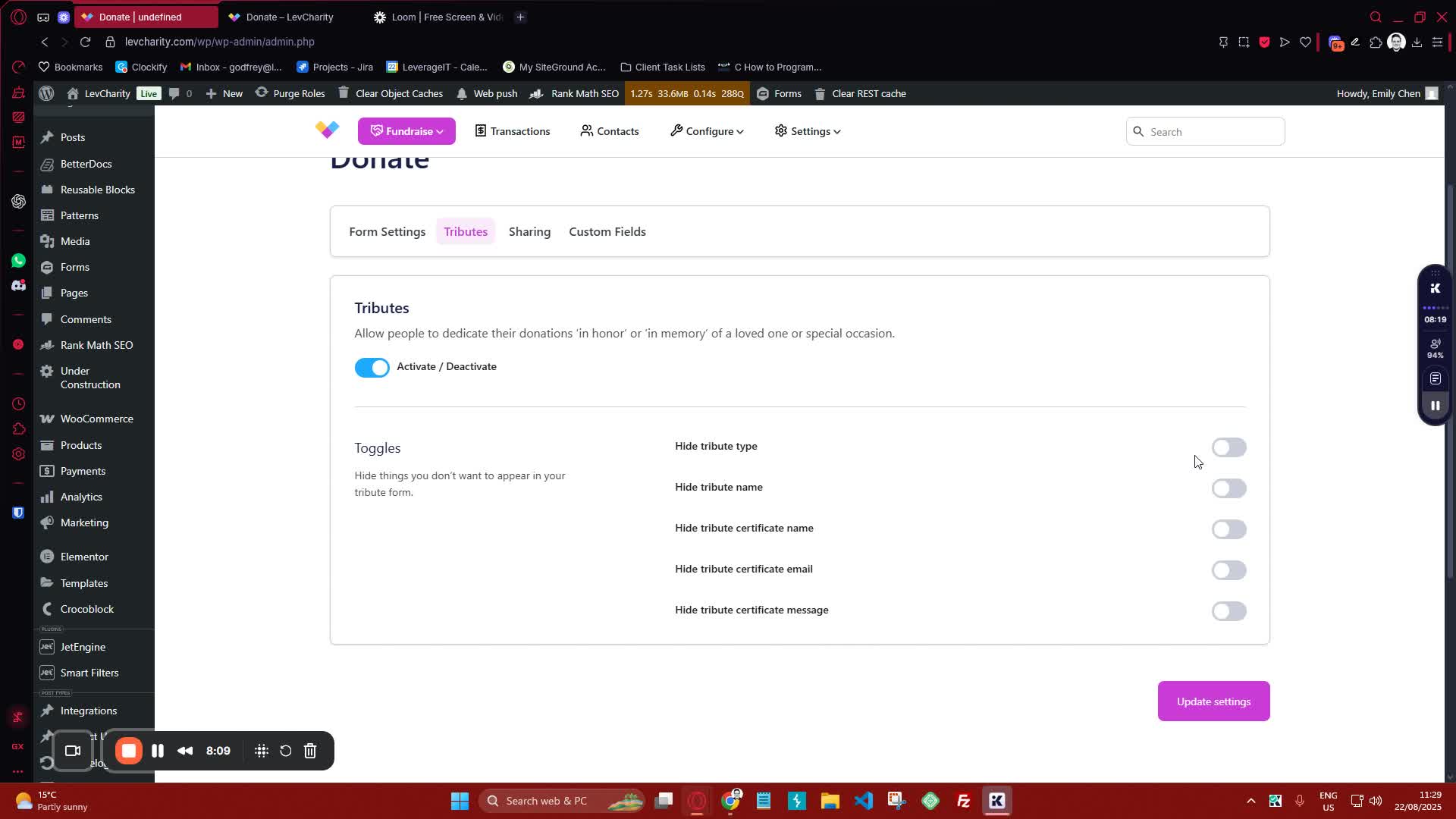
generated-image-at-00:08:10
  • Enable tribute options for donations made in memory of someone.

SEO Settings for Sharing 8:10
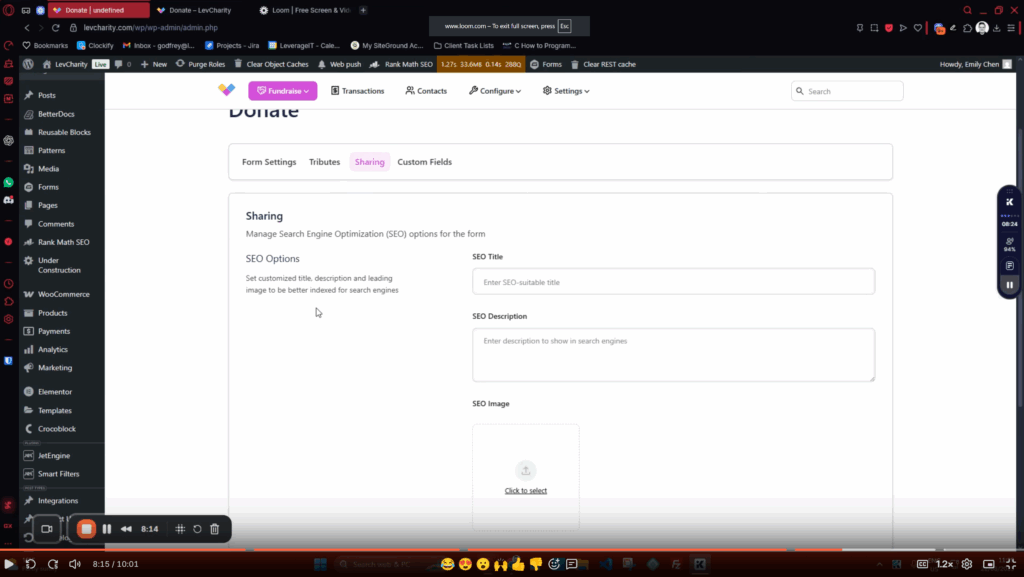
  • Customize SEO title, description, and image for social media sharing.

Adding Custom Fields 8:39
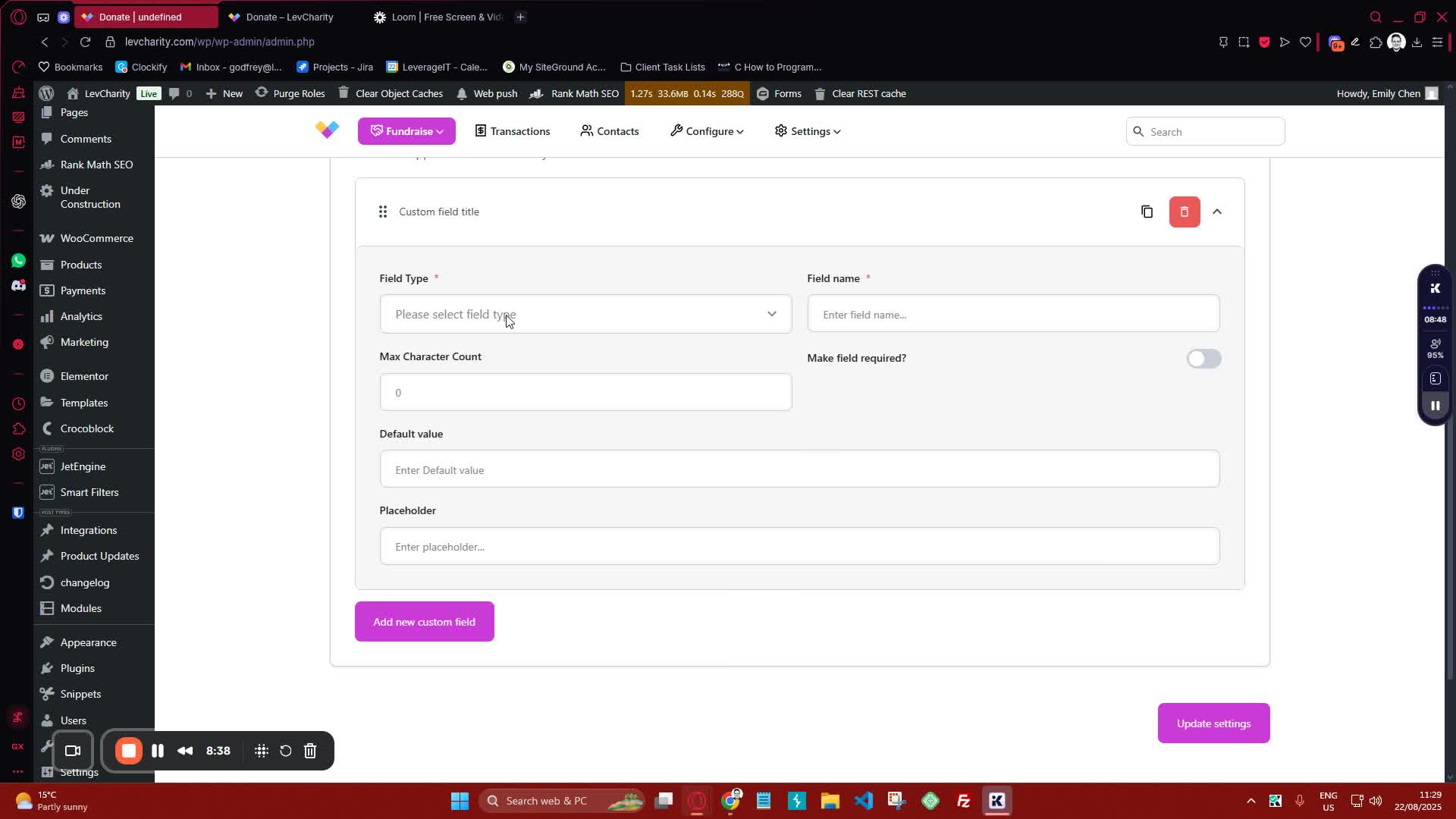
generated-image-at-00:08:39
  • Use custom fields to collect additional information at checkout.

Using Checkout Link 9:15
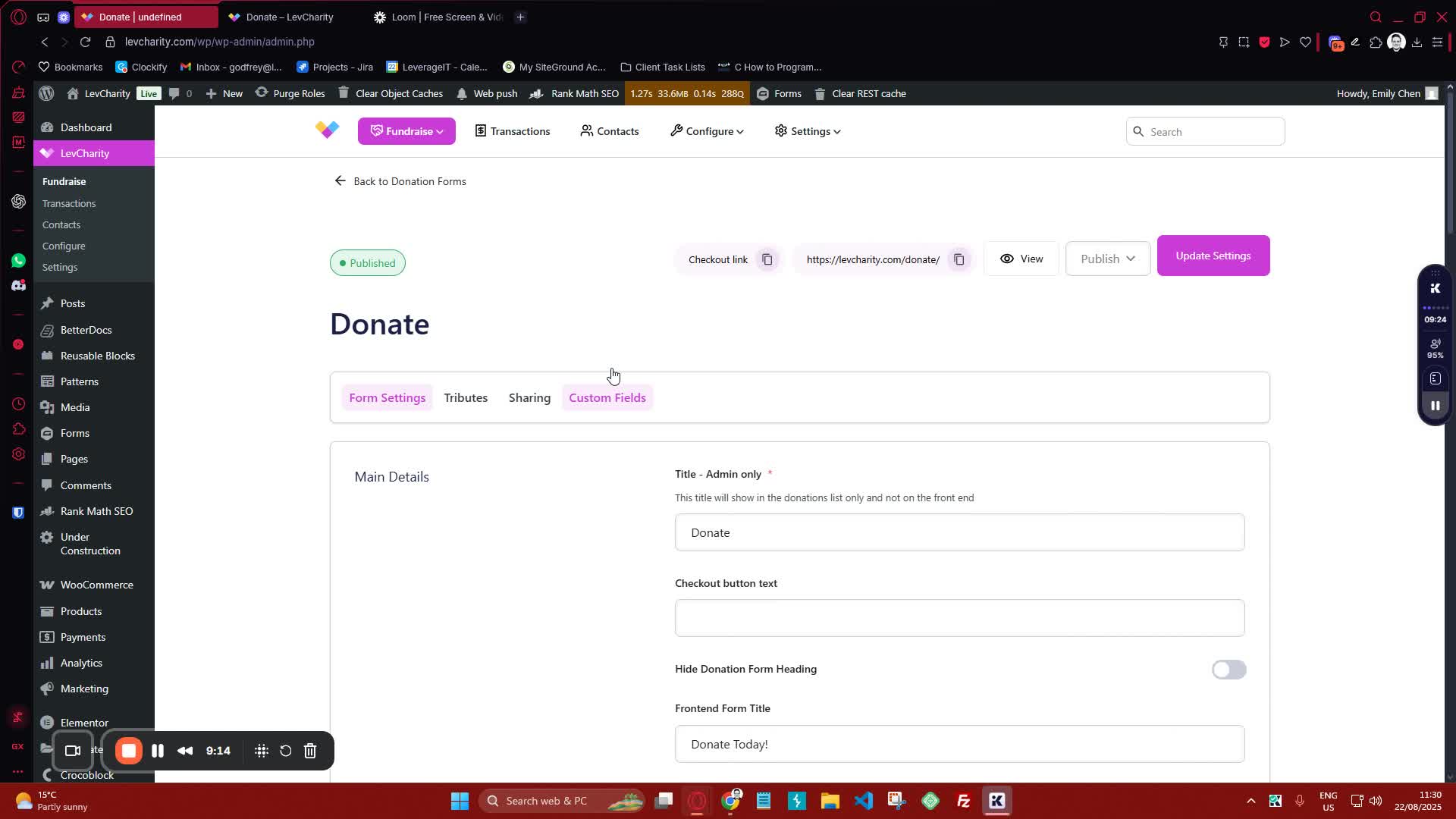
generated-image-at-00:09:15
  • If preferred, use the checkout link to send donors directly to the checkout page.

Cautionary Notes #

  • Ensure all required fields are filled out before saving the form.
  • Double-check the currency settings to avoid confusion for donors.

Tips for Efficiency #

  • Use predefined amounts to streamline the donation process.
  • Regularly review and update the donation form settings to reflect current campaigns or needs.

Link to Loom #

Was this article helpful?
Still not sure? How can we help?

How can we help?

Updated on October 29, 2025
How to configure a sponsorship opportunity donation form
Table of Contents
  • Objective
  • Key Steps
  • Cautionary Notes
  • Tips for Efficiency
  • Link to Loom
Join our newsletter

Add your email to stay up to date on features and new releases:

[sibwp_form id=1]
  • Docs
  • Changelog
  • Privacy Policy
  • Terms of Service
  • Cookies Settings
  • Docs
  • Changelog
  • Privacy Policy
  • Terms of Service
  • Cookies Settings