
Objective #
This SOP outlines the steps to configure email notifications for e-cards in the system, ensuring both users and admins receive timely updates regarding e-card purchases and statuses.
Key Steps #
1. Access Email Configuration 0:16
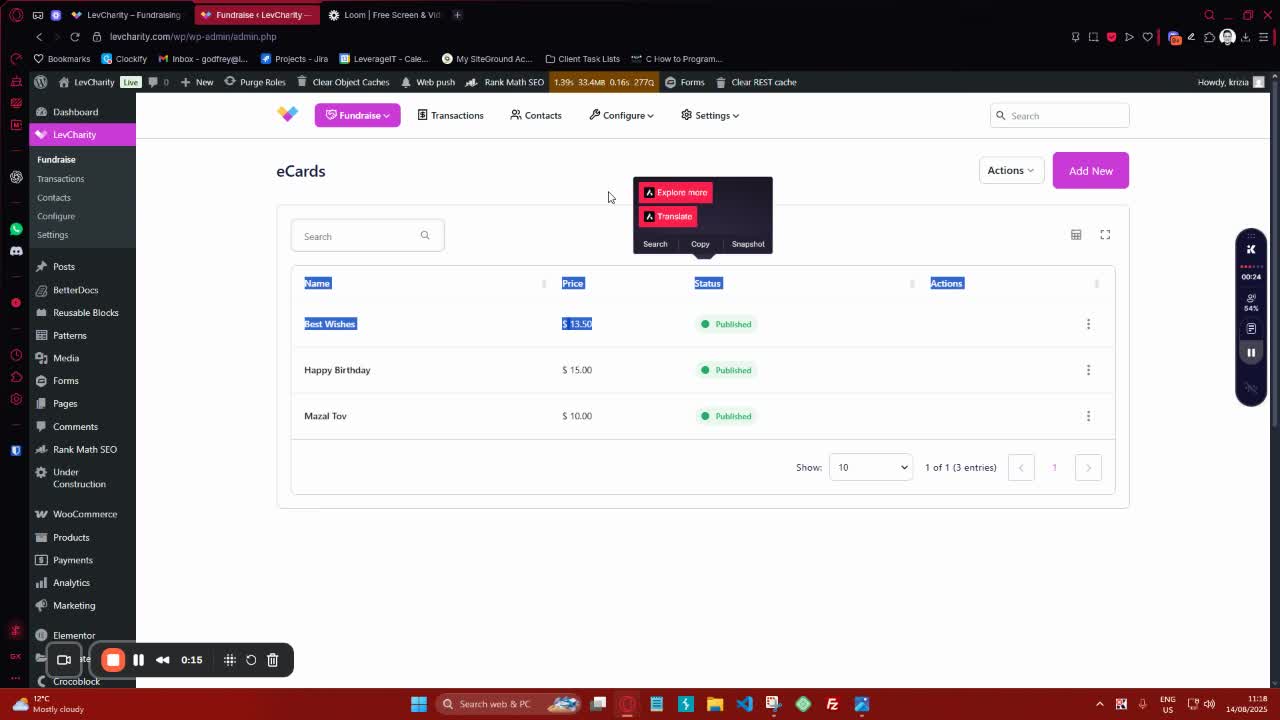
- Navigate to the configuration section of the system.
- Click on the ‘E-mails’ option to access the email settings.
2. Add New Notification 0:32
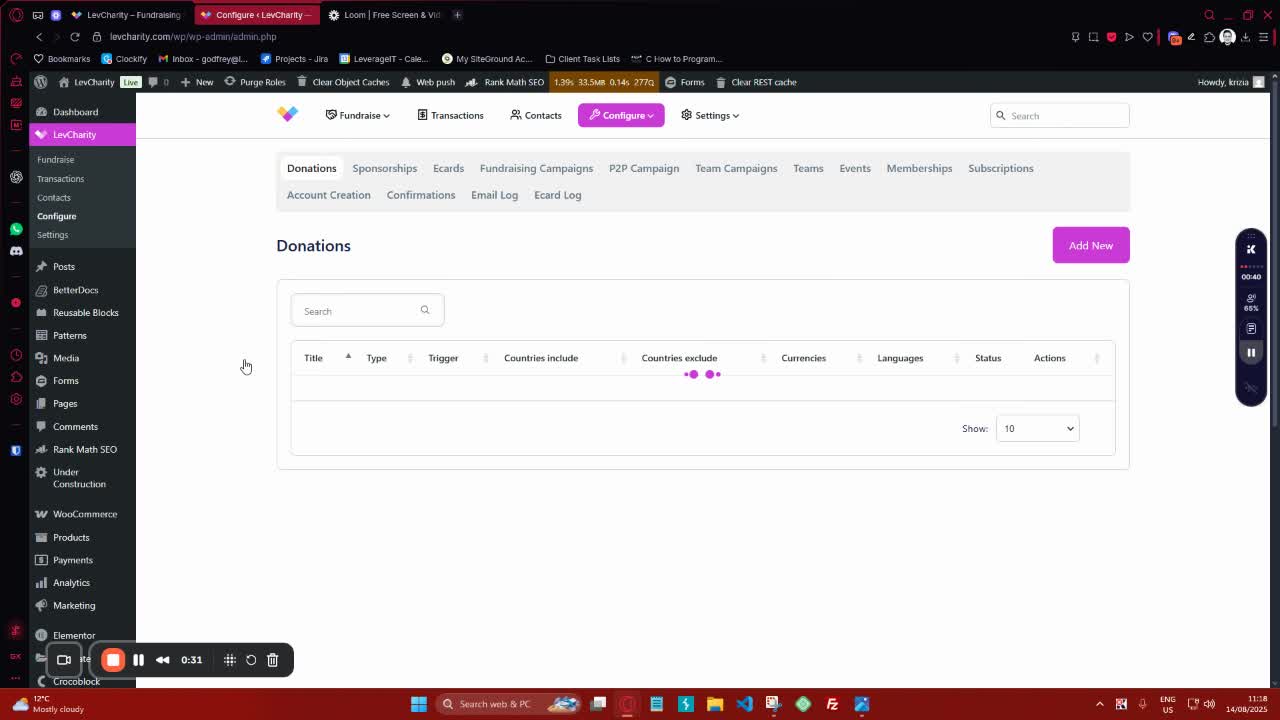
- Click on ‘Add New’ to create a new email notification.
- Choose between ‘User Notification’ or ‘Admin Notification’ based on your requirement.
3. Select Notification Action 0:59
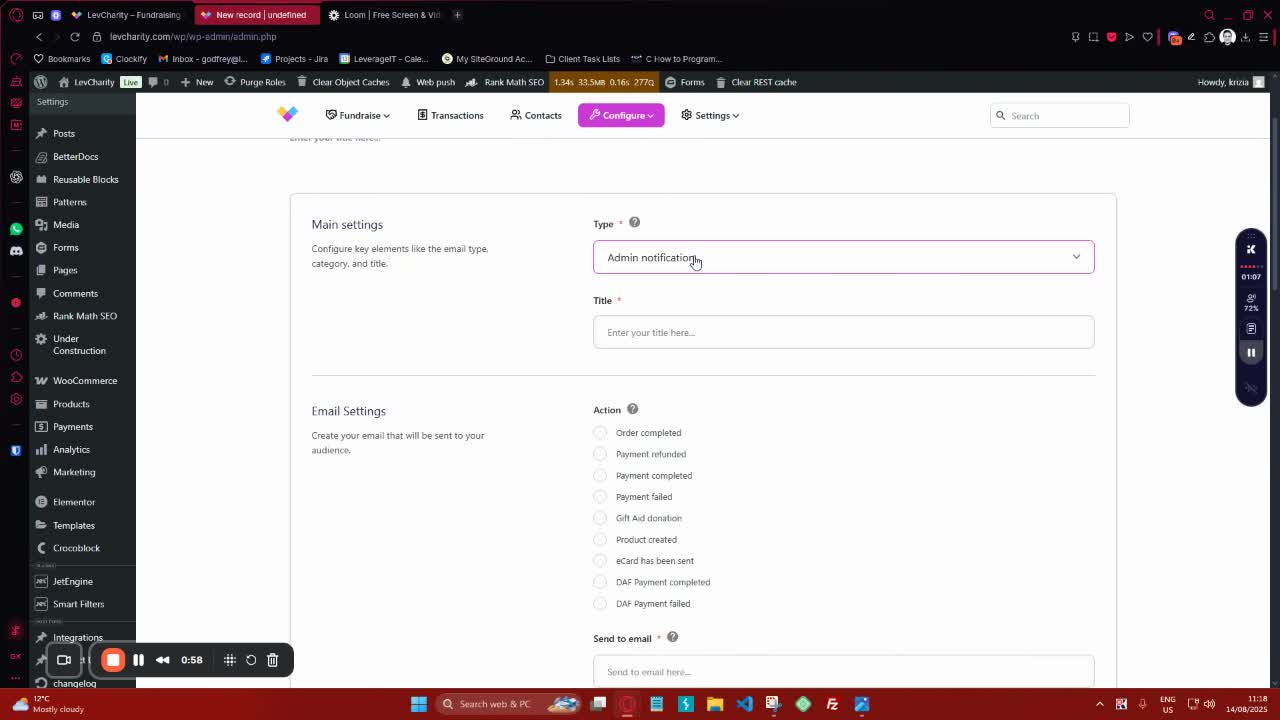
- For User Notifications, select one of the following actions:
- Order Completed: Triggers when an order is manually marked as complete.
- Payment Refunded: Triggers when a refund is processed.
- Payment Completed: Triggers when an e-card purchase is successful.
- Payment Failed: Triggers when a transaction does not go through.
- E-Card Sent: Notifies that the e-card has been sent to the user.
4. Configure Email Settings 2:21
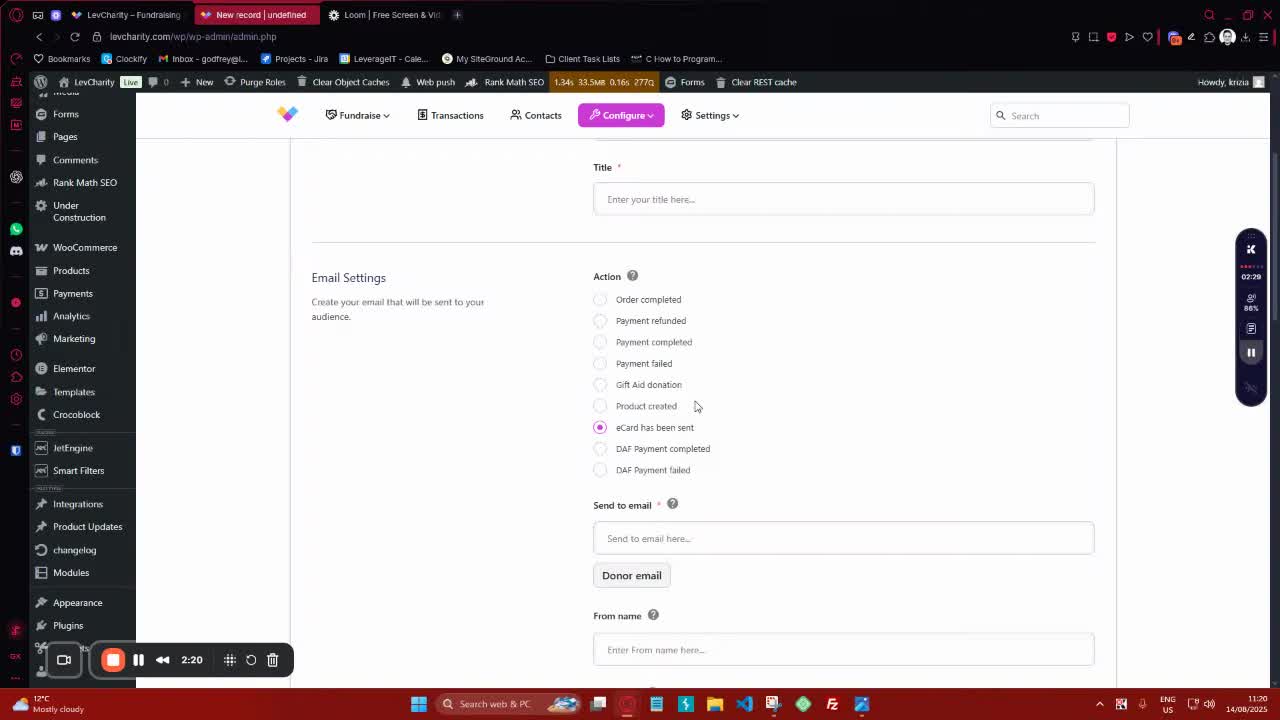
- Fill in the email settings:
- From Name: Set the name that will appear as the sender.
- From Email: Specify the email address from which notifications will be sent.
- Reply-To Email: Optionally set an email for replies.
- BCC/CC: Add any additional recipients if necessary.
5. Customize Email Content 3:04
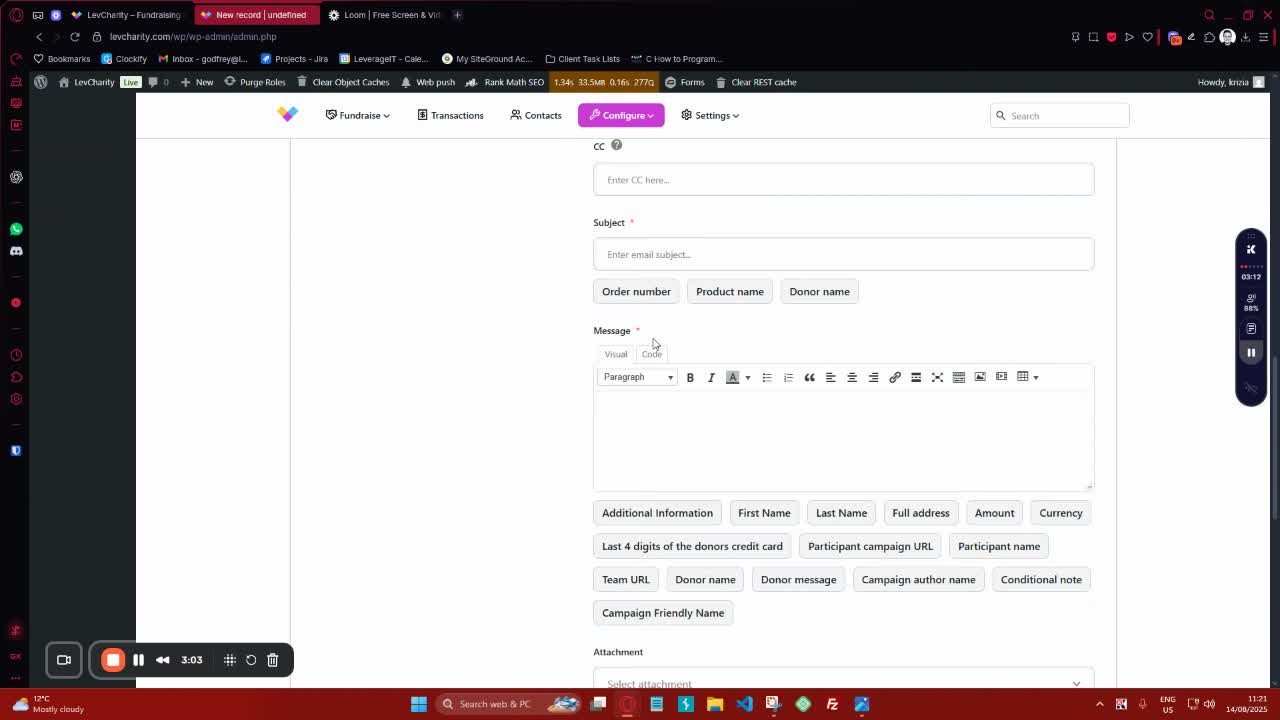
- Set the Subject Line for the email, using merge tags for dynamic content (e.g., order number, product name, donor name).
- Write the Message body, including any necessary information about the e-card.
6. Add Attachments (if needed) 3:25
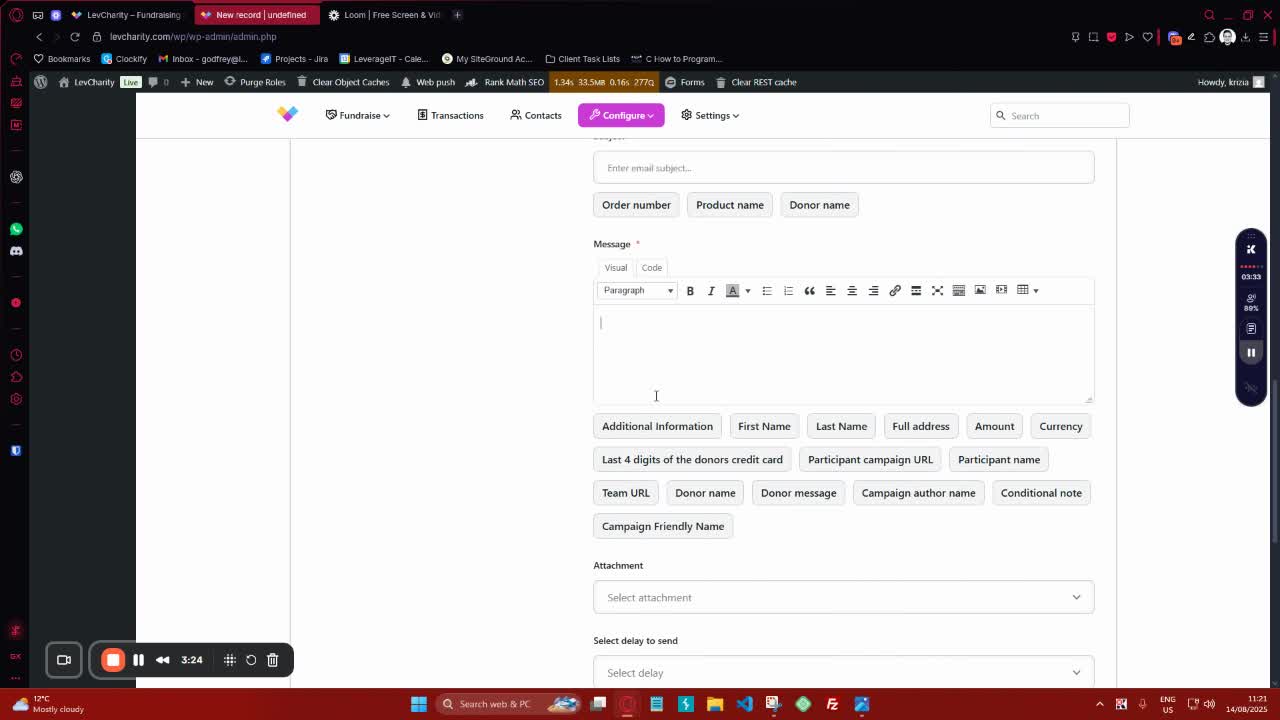
- If you want to include a receipt or any other document, use the attachment option.
7. Customize Per E-Card or Country 3:36
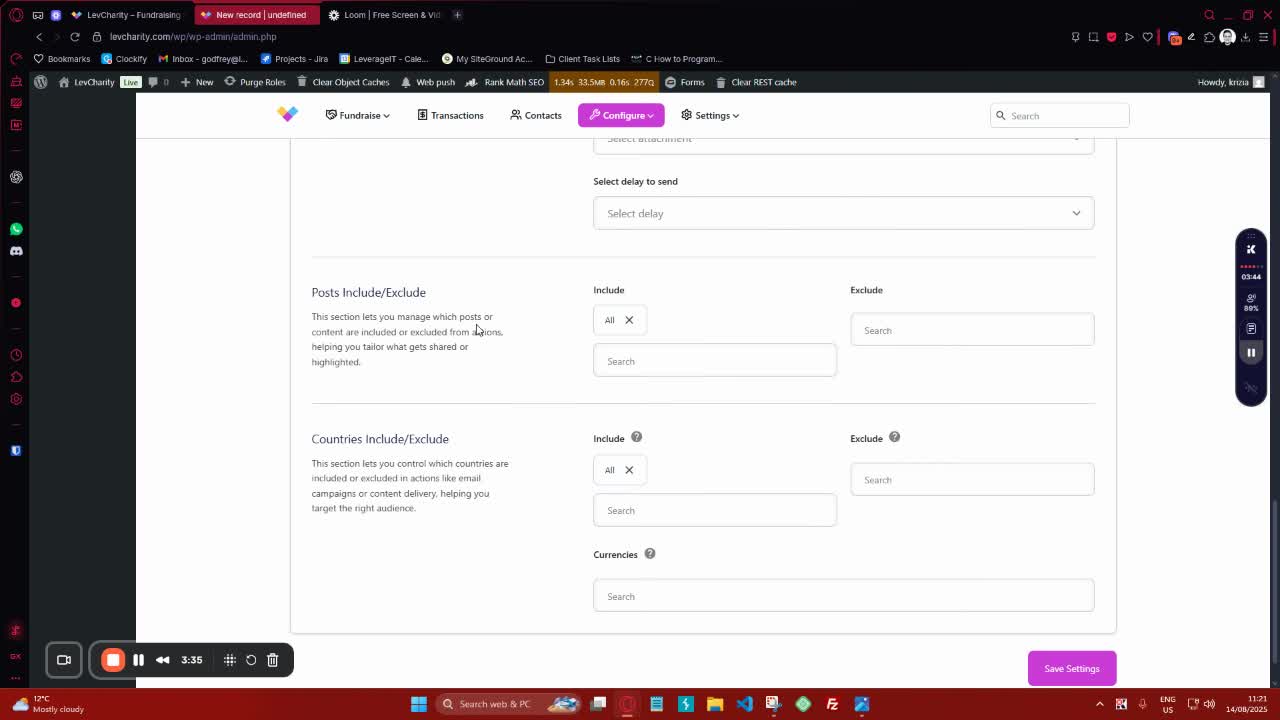
- If needed, customize emails for specific e-cards or countries:
- Use the dropdown to select specific e-cards.
- Specify countries to include or exclude for targeted notifications.
8. Save Settings 4:35
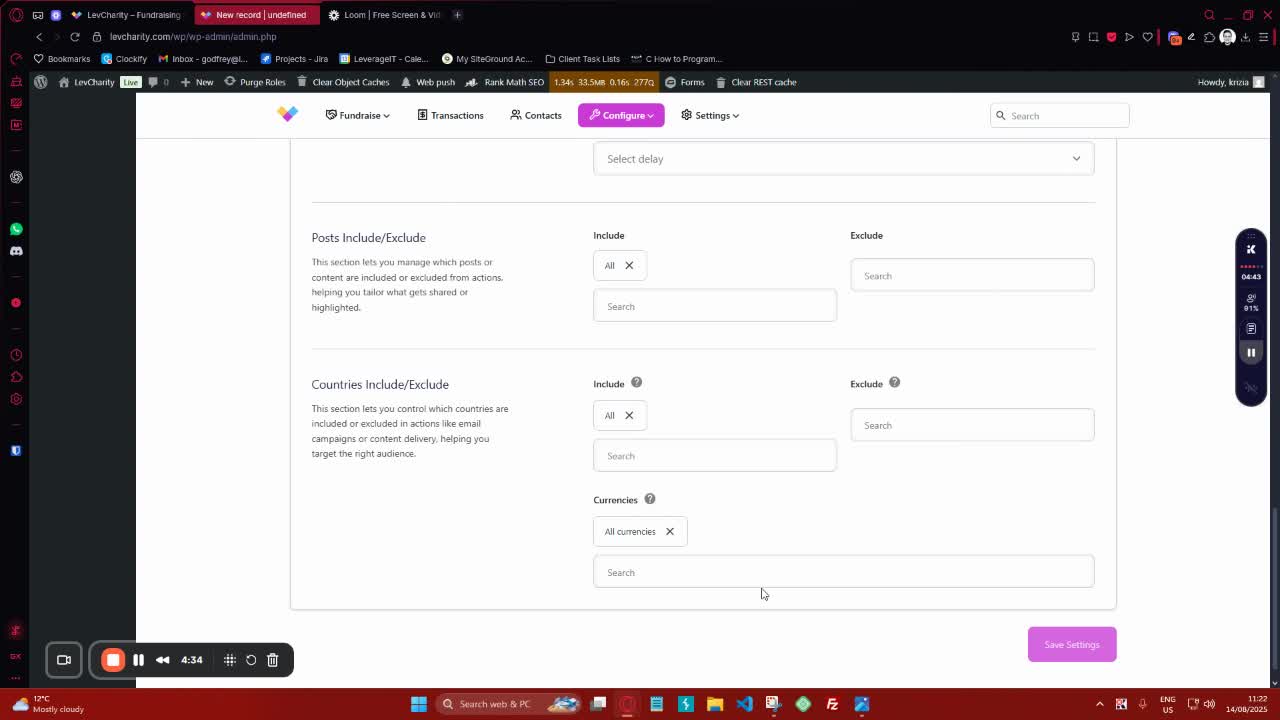
- Ensure all settings are correct and click ‘Save Settings’ to activate the notification.
9. Admin Notifications Setup 4:44
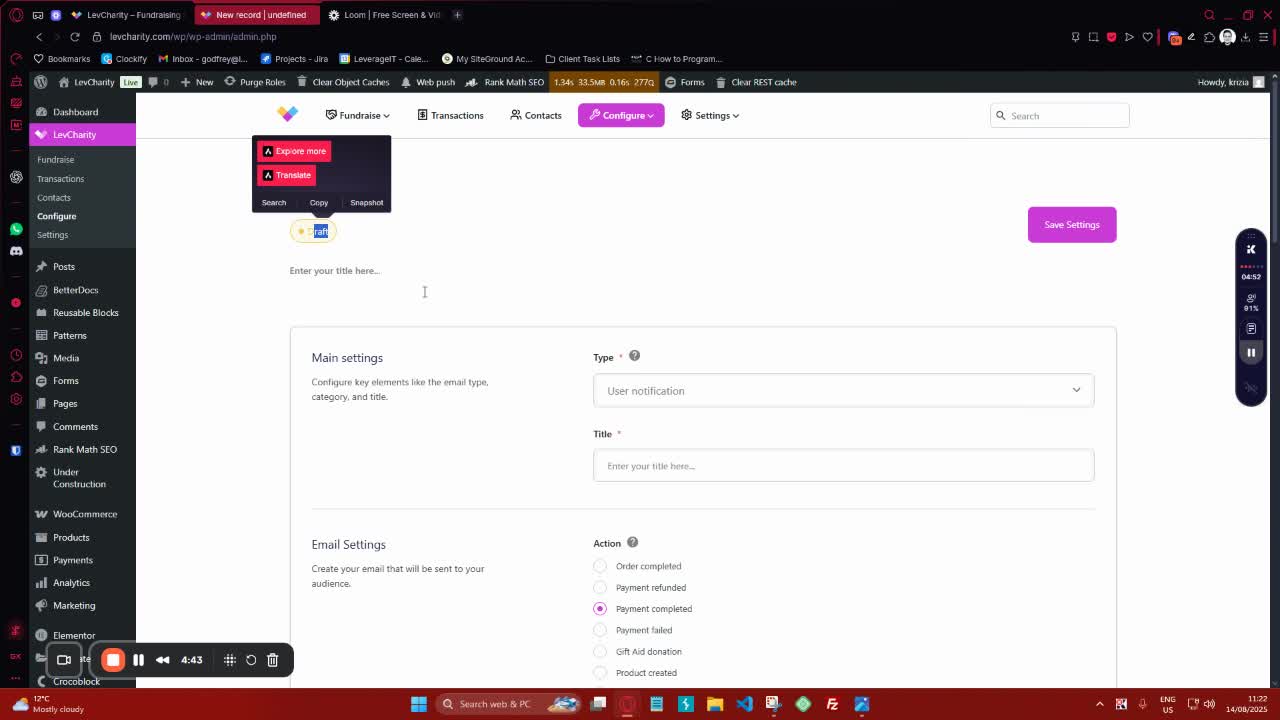
- For Admin Notifications, follow similar steps as for User Notifications, adjusting any necessary metadata.
Cautionary Notes #
- Ensure that the email addresses used are valid to avoid delivery issues.
- Double-check the merge tags to ensure they pull the correct information.
Tips for Efficiency #
- Use templates for common email notifications to save time.
- Regularly review and update email settings to reflect any changes in the e-card offerings or policies.