Request a Demo
  • Platform
    • Donations
    • Campaigns
    • Events
    • eCards
    • CRM
  • Features
  • Integrations
  • Support
  • Company
  • Platform
    • Donations
    • Campaigns
    • Events
    • eCards
    • CRM
  • Features
  • Integrations
  • Support
  • Company
Request a Demo

Donations

  • Creating On-Page Donation Forms
  • How to configure a sponsorship opportunity donation form
  • How to setup a variations donation form
  • Overview of Donation Forms on LevCharity

Crowdfunding Campaigns

  • Creating a Crowdfunding Campaign at LevCharity
  • Setting Up Crowdfunding Campaigns
  • Crowdfunding Sign-Up Procedure
  • Creating Crowdfunding Emails on LevCharity Platform
  • Exporting Data for Team Campaigns

Integrations & Settings

  • Setting Up Donation Forms in Plugin
  • Crowdfunding Account Sign-Up Settings

Events

  • Creating Events Using the Events Module
  • Creating and Managing Events in the Back-End System
  • Creating an Event Using the OLD Template in Fundraise
  • Creating and Managing Events Using Single and Multiple Templates
  • Setting Up Emails for Events
  • Exporting Event Data from LevCharity Platform
  • Creating Event Digital Ads

E-Cards

  • Creating E-Cards
  • Managing E-Cards
  • Setting Up E-Card Email Notifications

Fundraising Campaigns

  • Creating a Fundraising Campaign on LevCharity Platform
  • Standard Operating Procedure for Managing Fundraising Campaigns

Configure

  • Setting Up Donation Receipts
  • Adding Sponsorship Equipment Pieces to Your Site

Transactions

  • Managing Transactions in the Admin Back-End
View Categories

Managing Transactions in the Admin Back-End

2 min read

Objective #

This SOP outlines the steps for managing transactions in the admin back-end, including filtering, adding, and editing transactions.

Key Steps #

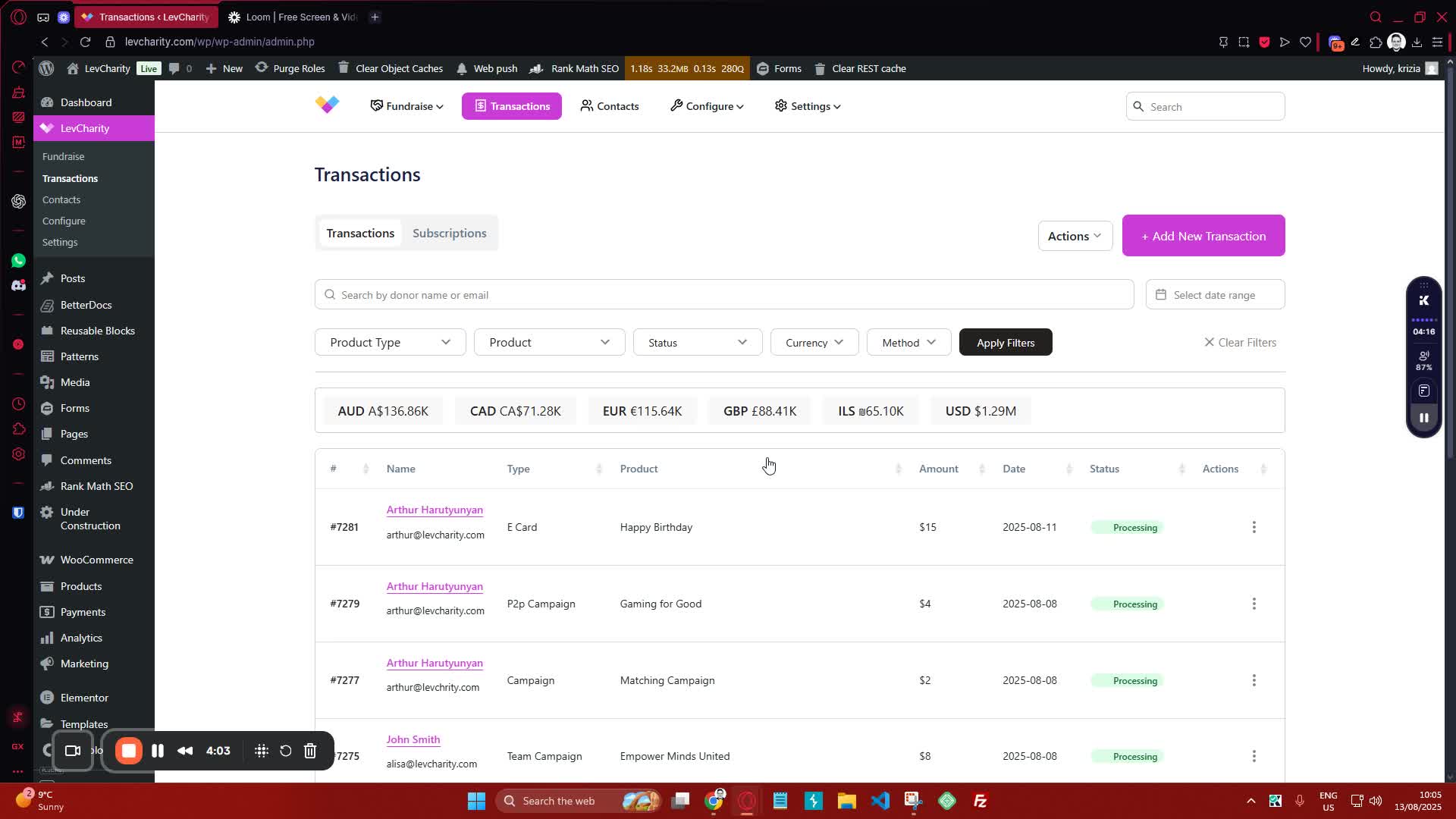
1. Accessing Transactions 0:13

  • Navigate to the transactions section in the admin back-end.
  • This section provides a quick overview of transactional information.

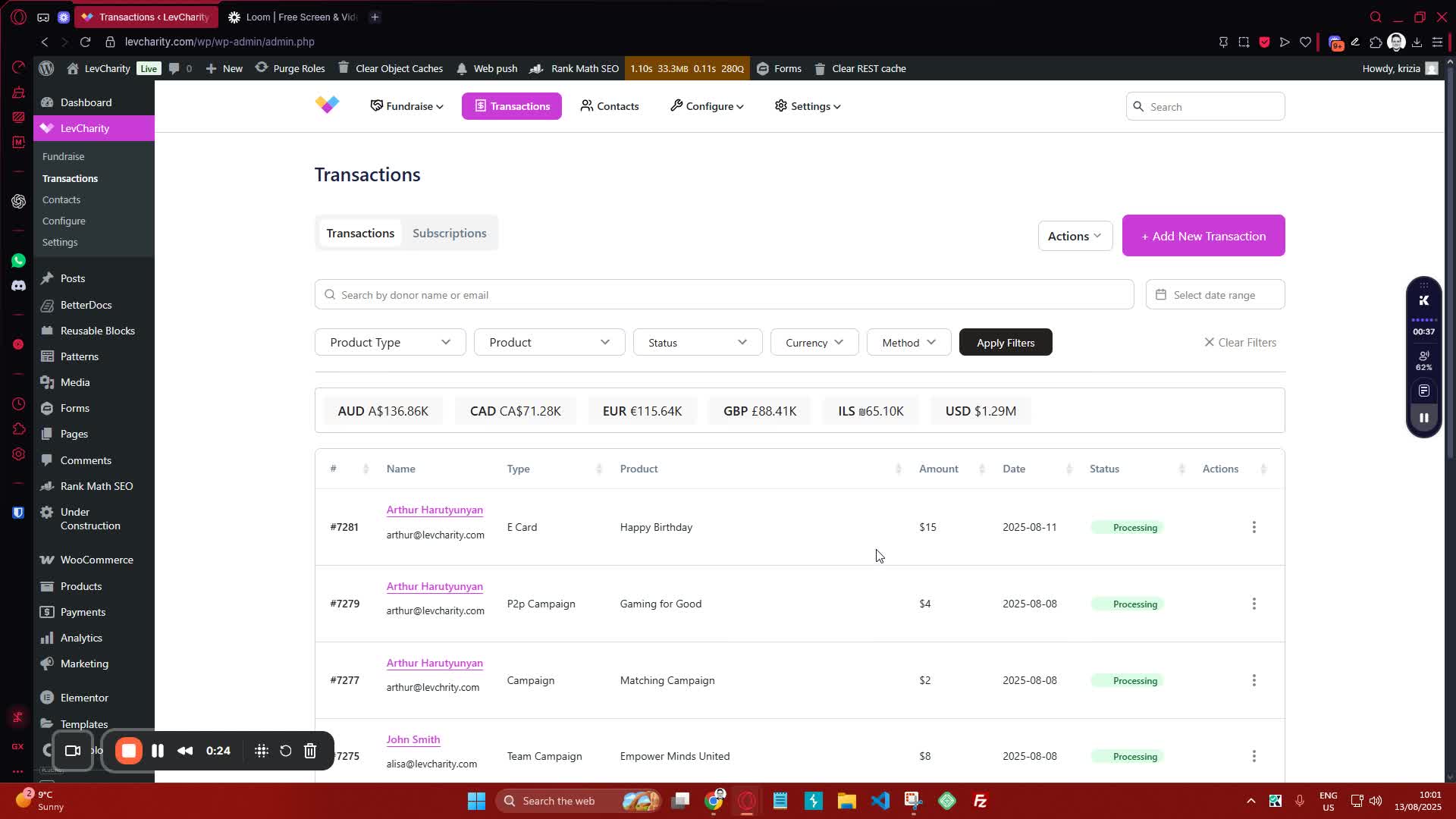
2. Filtering Transactions 0:25
generated-image-at-00:00:25
  • Use the filters to search for specific transactions:
    • Select the type of campaign (e.g., team campaign).
    • Choose the status (e.g., processing).
    • Specify the currency and whether the transaction is online or offline.
  • Click ‘Apply Filters’ to view the filtered results.

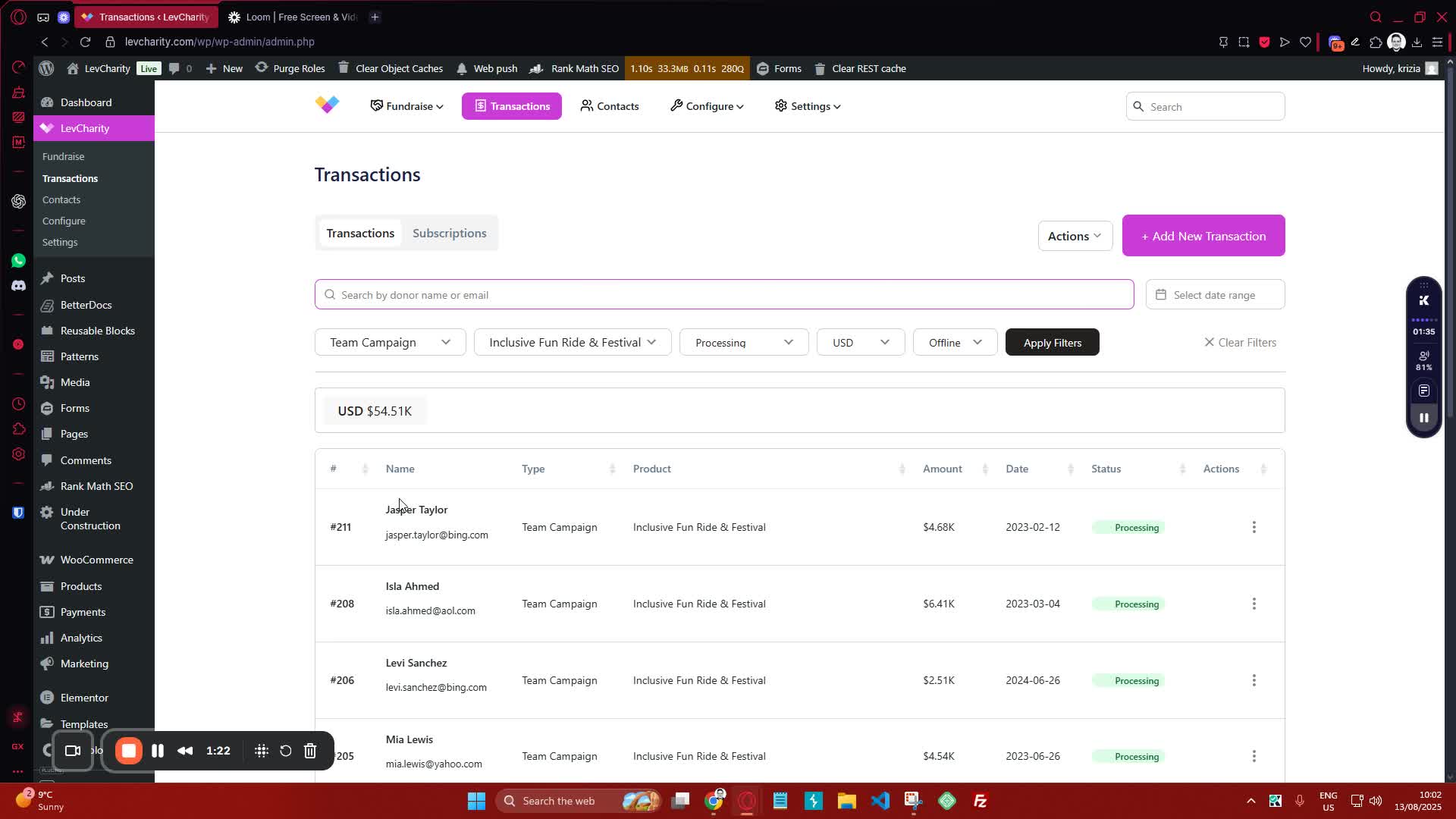
3. Searching by Donor Name 1:23
generated-image-at-00:01:23
  • To find a specific donor, enter their email in the search field.
  • Click ‘Apply Filter’ to display transactions related to that donor.

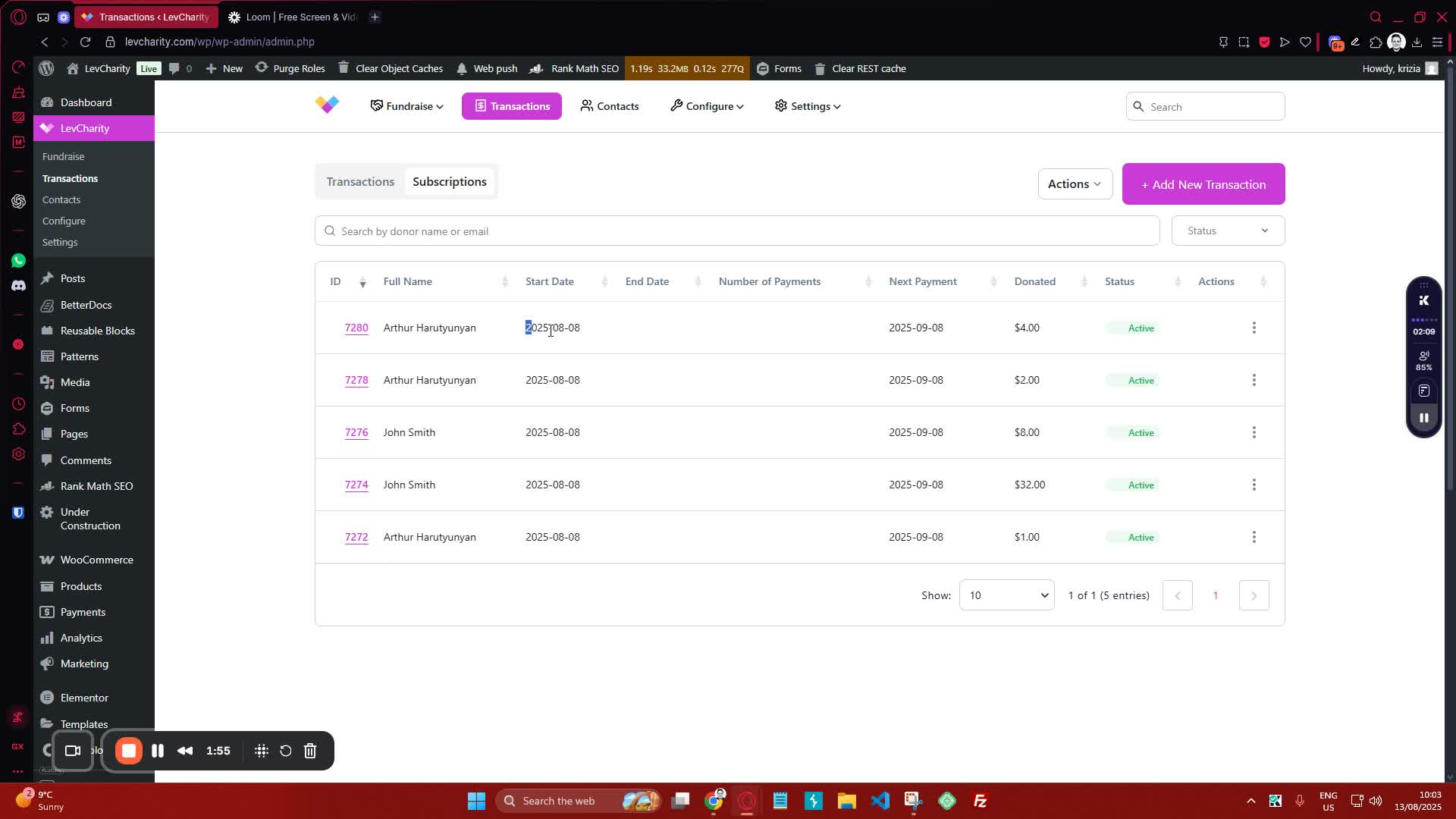
4. Managing Subscriptions 1:56
generated-image-at-00:01:56
  • View subscription details including:
    • Start date
    • End date
    • Number of payments
    • Next payment date
  • Use the actions available to pause or cancel subscriptions as needed.

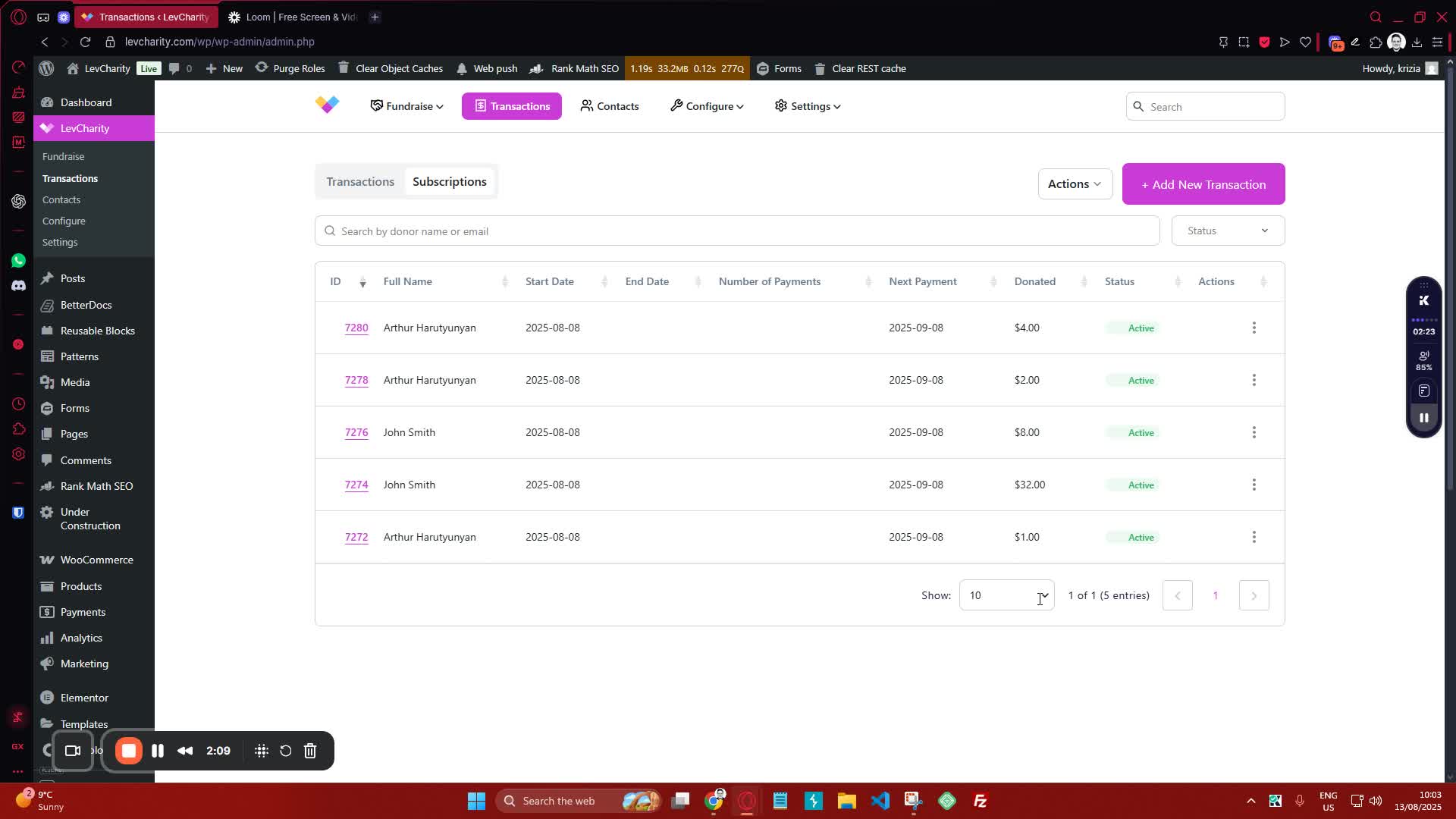
5. Exporting Transaction Data 2:10
generated-image-at-00:02:10
  • Use the quick export option for a simplified data export.
  • Note that this export may not contain all detailed information.

6. Adding a New Transaction 2:25
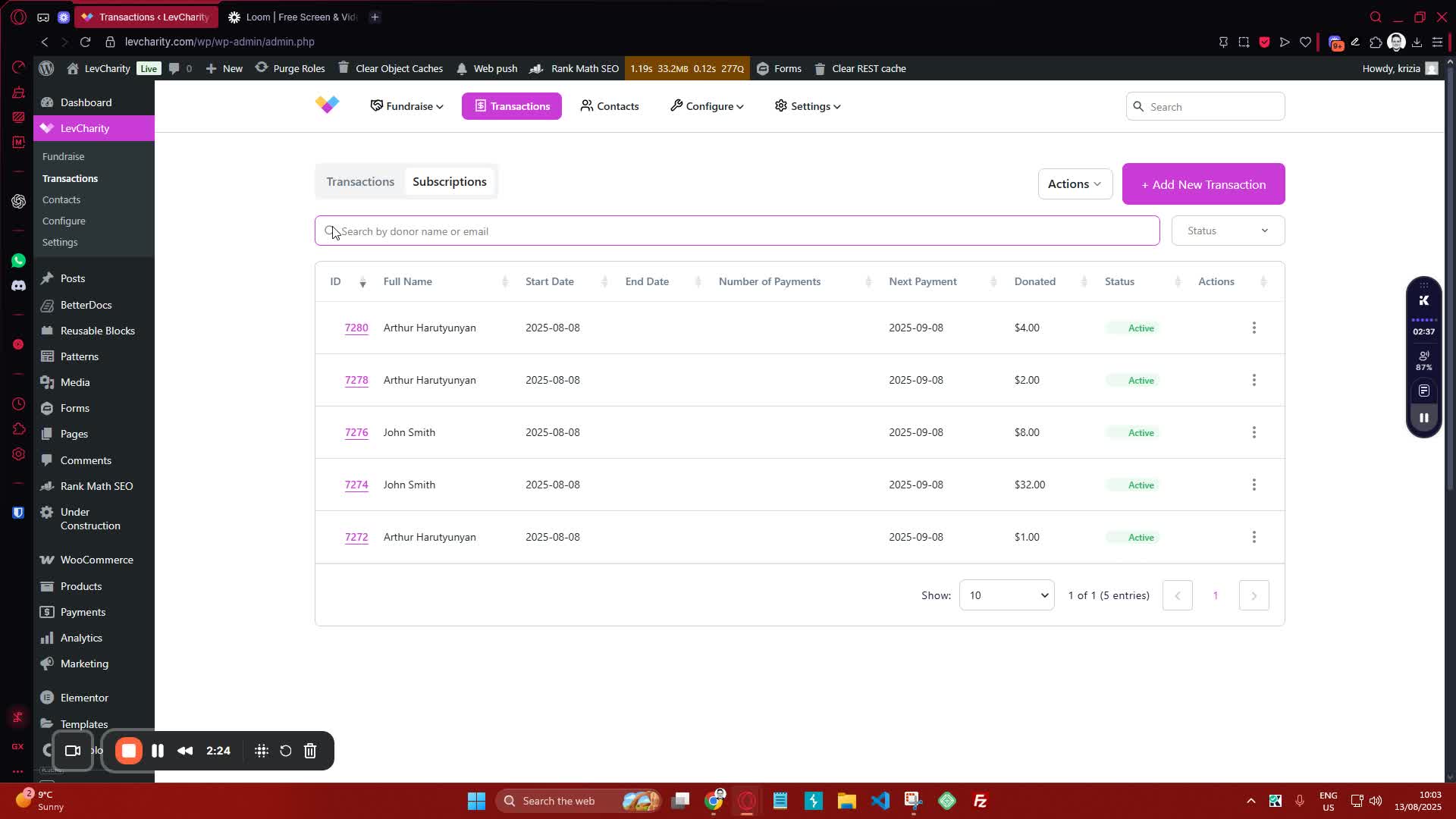
generated-image-at-00:02:25
  • Click on ‘Add New Transaction’ to record an offline donation.
  • Fill out the required fields:
    • Donor’s phone number
    • Donation amount
    • Product type
    • Currency
    • Payment method
  • Select the relevant team (e.g., Peace) and ensure all information is correct.

7. Saving and Reviewing Transactions 3:41
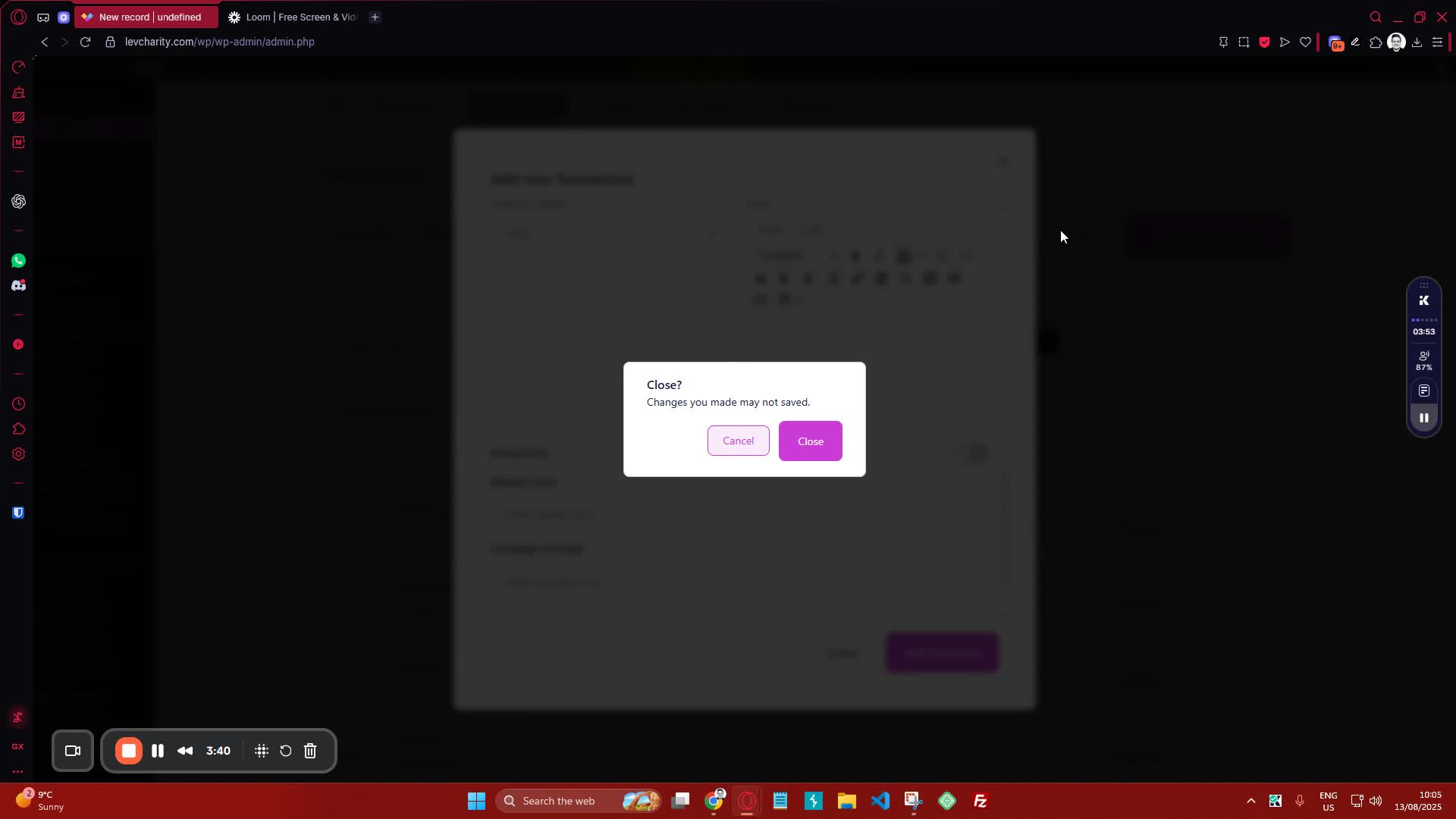
generated-image-at-00:03:41
  • After entering the transaction details, click ‘Add New’ to save.
  • The transaction will appear in the transaction list for review.
  • Edit the transaction if any changes are needed later.

8. Contact for Questions 4:04
generated-image-at-00:04:04
  • If you have any questions regarding transactions, reach out for assistance.

Cautionary Notes #

  • Ensure all transaction details are accurate before saving.
  • Double-check donor information to avoid errors in records.

Tips for Efficiency #

  • Familiarize yourself with the filter options to quickly locate transactions.
  • Regularly review subscriptions to manage ongoing donations effectively.
  • Use the quick export feature for fast data retrieval when detailed reports are not necessary.

Link to Loom #

Was this article helpful?
Still not sure? How can we help?

How can we help?

Updated on October 29, 2025
Table of Contents
  • Objective
  • Key Steps
  • Cautionary Notes
  • Tips for Efficiency
  • Link to Loom
Join our newsletter

Add your email to stay up to date on features and new releases:

[sibwp_form id=1]
  • Docs
  • Changelog
  • Privacy Policy
  • Terms of Service
  • Cookies Settings
  • Docs
  • Changelog
  • Privacy Policy
  • Terms of Service
  • Cookies Settings